
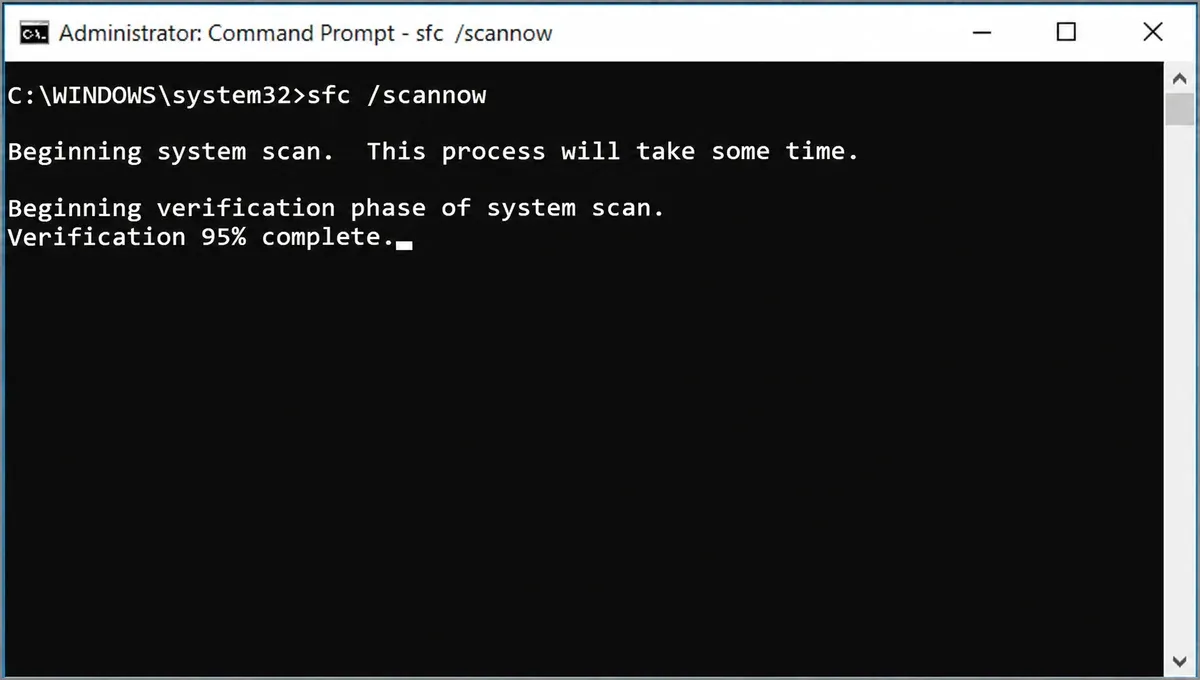
If SFC /scannow appears stuck, keep its window open and check whether verification is still active before starting another repair. A percentage that hasn't changed is not a final result. Record the command and elapsed time, inspect recent servicing activity in a separate window, and wait for SFC's result message. Don't run another SFC or DISM repair alongside the unfinished scan.
I'd separate a quiet progress display from a scan that has already stopped with an error. That distinction decides whether to observe the current run or troubleshoot its result. There isn't a useful universal deadline that makes every scan at 6%, 48% or 100% a failed scan.
Check the command and last complete message
Look at the original repair window. Confirm that it is running sfc /scannow, not DISM.exe /Online /Cleanup-Image /RestoreHealth. If the latter is waiting at 62.3%, use the separate DISM progress and servicing-log checks.
| What the window shows | What to do next |
|---|---|
| Verification percentage, with no final result | Keep the scan open and inspect the current run's activity. |
| Verification 100% complete, but no result yet | Read the following output before declaring success or starting another repair. |
| A Windows Resource Protection result and a returned prompt | The command has ended. Follow that exact result. |
| The entire PC stops responding | Treat this as a wider system failure; avoid repeated forced shutdowns. |
If the command prompt has returned without a usual result, or the window closed unexpectedly, record that as an unknown outcome. Preserve any visible error and the attempt's timestamp. Don't call the scan clean, and don't keep waiting for a command that has already ended.
Microsoft's SFC instructions and completion warning say not to close Command Prompt until verification is complete and explain the result messages shown afterward. A displayed 100% doesn't identify which result follows.
Observe the existing scan without launching another repair
Keep the laptop connected to reliable power. Note the time and last line in the SFC window, and check whether other applications still respond. If Windows is installing an update or performing other servicing work, record that too. Don't stop its services to force the percentage forward.
SFC records details in %windir%\Logs\CBS\CBS.log. Open a separate PowerShell window as administrator using an authorized account. Leave the original SFC window alone. The following read-only command displays the latest ten log lines and watches for additions:
Get-Content "$env:windir\Logs\CBS\CBS.log" -Tail 10 -WaitMicrosoft's Get-Content parameter reference defines -Tail as lines from the end and -Wait as continuing to watch for new lines. The watcher remains open rather than returning to a prompt. It is reading a log, not running a second repair.
Compare timestamps with the current attempt. SFC-related entries use the [SR] marker, and the log can contain information from multiple runs. New CBS lines show servicing activity; they aren't proof that every line belongs to your SFC run. An old last entry alone doesn't establish why the percentage is stationary.
To stop watching, press Ctrl + C in the PowerShell window. That instruction stops the log watcher. Don't press it in the original SFC window as part of this check. If the log can't be read, retain the access or path error; don't delete it, create an empty replacement or change Windows-folder permissions.
Some guides suggest pressing Enter repeatedly. I wouldn't treat a keypress as a repair or a completion test. Keep the command and final output as the evidence; don't type another command into a window whose scan hasn't returned to a prompt.
Use repeated observations instead of a fixed timeout
Compare the visible percentage, new log timestamps and whether Windows remains responsive over repeated checks. Recent relevant entries are a reason to leave the current operation alone. If the screen and logs remain unchanged, save the evidence for support before choosing whether to interrupt or restart the operation. More waiting is not itself a successful repair.
Don't terminate TrustedInstaller.exe or TiWorker.exe, clear servicing folders, disable security software or start a partition repair just because a progress number has stopped moving. Those actions change the system without identifying the blocked work. On a managed PC, have IT review the scan and servicing state.
The reported cases have different outcomes. In a Windows 10 SFC-at-6% discussion, the owner reported clean DISM checks while SFC remained incomplete. The accepted reply suggested a download, but the visible thread doesn't confirm that it completed the scan. A clean DISM result isn't the missing SFC result.
In a separate SFC-at-48% case, the scan had already returned a requested-operation error, and DISM reported a WOF error. The owner later described a serious power-connector problem and a fresh installation on another drive. That history doesn't make 48% a hardware diagnosis. If your own PC has electrical damage or a disappearing drive, stop repair loops and prioritize safe handling and your data.
Prepare one supported retry after the active operation ends
Use this sequence for a later attempt inside a Windows installation that starts normally, after the previous scan and other servicing operations have ended. Save work, back up important files and complete any required normal restart. Don't paste these commands into the observation window while SFC is still active.
- Search for Command Prompt, right-click the result and select Run as administrator. Approve the intended app with an authorized account.
- Run
DISM.exe /Online /Cleanup-Image /RestoreHealth. Wait for its final result. - Only after DISM reports The operation completed successfully, run
sfc /scannow. Keep its window open through verification and read the final Windows Resource Protection message.
Microsoft's Windows 11 and Windows 10 repair sequence puts DISM before SFC. The detailed SFC guidance explains that DISM supplies files needed for repair. If DISM ends with an error, preserve that code instead of treating its percentage or the command's return as success.
Microsoft's DISM target options define /Online as the running operating system. A recovery Command Prompt needs the correct offline target and a different procedure; don't assume a USB recovery session's drive letters match normal Windows.
Follow the result rather than the old percentage
Windows Resource Protection did not find any integrity violations: this scan found no protected-system-file corruption. Return to the original problem instead of running scans until something changes.
Windows Resource Protection found corrupt files and successfully repaired them: keep the result, complete a required restart and retest the Windows feature or application that led you to run SFC. Repaired files don't establish that every symptom is resolved.
Windows Resource Protection found corrupt files but was unable to fix some of them: use the current-run CBS entries and unrepaired-file checks. Match the timestamp rather than diagnosing today's attempt from an older entry.
Windows Resource Protection could not perform the requested operation: follow the requested-operation error and Safe Mode checks. That final error is a different state from an active percentage with no result.
Retain the evidence before escalating repairs
If SFC again produces no final message, give support the Windows version/build, exact command, time started, elapsed time, last displayed line, whether other apps respond, and relevant CBS entries from that period. Keep account names, device identifiers and private paths out of public posts. Retain the original log privately.
When repeated targeted attempts still fail, review the repair-install choices and app-retention requirements after the active operation has ended. A reset or clean installation is a different decision, so check the backup and retention choices before continuing.
Stop repeating the same scan once it has a clear result and the original task works. If either still fails, keep both outcomes for diagnosis. The Windows system repair hub separates stalled progress, explicit SFC errors and repair-source problems.


