
To run Windows software in Linux, check the exact app's compatibility first, then install a trusted Windows installer in a separate Bottles environment and launch the installed program from that bottle. Bottles manages Wine, which implements Windows APIs on Linux without installing a complete Windows operating system. Choose the developer's Linux or web version when it covers your work; use a supported Windows environment when the required app or hardware won't work through Wine.
I'd make the choice for the application and required files, rather than for an EXE extension alone. An installer opening isn't enough: the program must also open, save and reopen your real file format, with the features your work requires. The steps below use an Intel or AMD x86-64 Linux desktop, not an Arm device or a Linux shell inside Windows.
Choose the route for your actual application
| Your situation | Start here |
|---|---|
| The developer offers a supported Linux build or browser app | Check its required features and file compatibility first. You may be able to avoid a Windows installer entirely. |
| You need a particular Windows desktop program with a matching Wine compatibility report | Try a separate Application bottle using the procedure below, with copies of your files. |
| The program needs a Windows device driver, an unsupported service, or a Windows-only configuration required by your organization | Confirm the vendor's supported deployment. Keep access to approved Windows hardware, a suitable VM or an authorized remote Windows desktop. |
| Your main goal is a Steam game | Start with the game's Linux/Steam support and Steam's supplied Proton route; don't assume a general office-app bottle is its best configuration. |
Wine's program loader and Windows API implementation explain how this compatibility route works. It doesn't turn every Windows application into supported Linux software. Valve's Proton guidance recommends the version supplied through Steam for most users; building Proton from source isn't a prerequisite for ordinary game access.
Check the app name, release, installer architecture, required plug-ins, license activation and connected devices. Compare a report's Wine or runner version and Linux setup with your planned setup. A result for an old release, or for a basic editor without your plug-ins, doesn't establish that the version you bought will work. Start with the developer's supported-platform information, then look for the matching entry in Wine's application database.
Two published examples show why that check matters. ZDNet's Wine walkthrough uses Notepad++ on its author's Linux setup. A Linux Mint discussion about a logic-analyzer app and an ebook converter instead ends without a confirmed Wine installation for those applications. I wouldn't use the editor example as evidence that a device utility, its driver or a different application's activation will work.
Install the supported Bottles package and finish onboarding
Get the Windows installer from the application's developer or your organization's approved source. Keep its license information private. Back up the documents and app data you need before experimenting, and use copies for the first file checks. Don't run a suspicious EXE to discover what it does.
Bottles' installation instructions provide the supported Flatpak route. Open its stable Bottles listing on Flathub through your distribution's software store. If Flatpak or Flathub isn't configured, use the linked setup instructions for your actual distribution first. A beta repository or a command that skips package verification isn't needed for this route.
- Install Bottles from that stable listing, then open Bottles from the Linux application menu.
- Complete its welcome screens while connected to the internet. Allow the required components and a runner to finish downloading before creating a bottle.
- If onboarding reports a failed download, keep the exact message and resolve that stage first. Repeatedly starting the Windows installer won't replace a missing runner.
The first-run procedure downloads components separately from the application package and checks them against repository checksums. A successful Flatpak installation and a ready-to-use bottle are separate stages. Keep the default installation path unless you already have a reason to manage bottle storage elsewhere.
Create one bottle and run the Windows installer
- In Bottles, select the + button to create a bottle.
- Give it a recognizable name for this application. Choose Application for this desktop-software route.
- Review the offered Runner. Start with the supplied choice unless a matching compatibility report calls for a particular available runner. Leave unrelated advanced options alone.
- Select Create and wait for bottle creation to complete. Open that bottle's details.
- Select Run executable, then choose the trusted installer you downloaded, such as its
.exeor.msifile. - Follow the application's installer inside the bottle. Keep the intended installation location in that bottle, accept only the components you need and complete the application's legitimate activation if required.
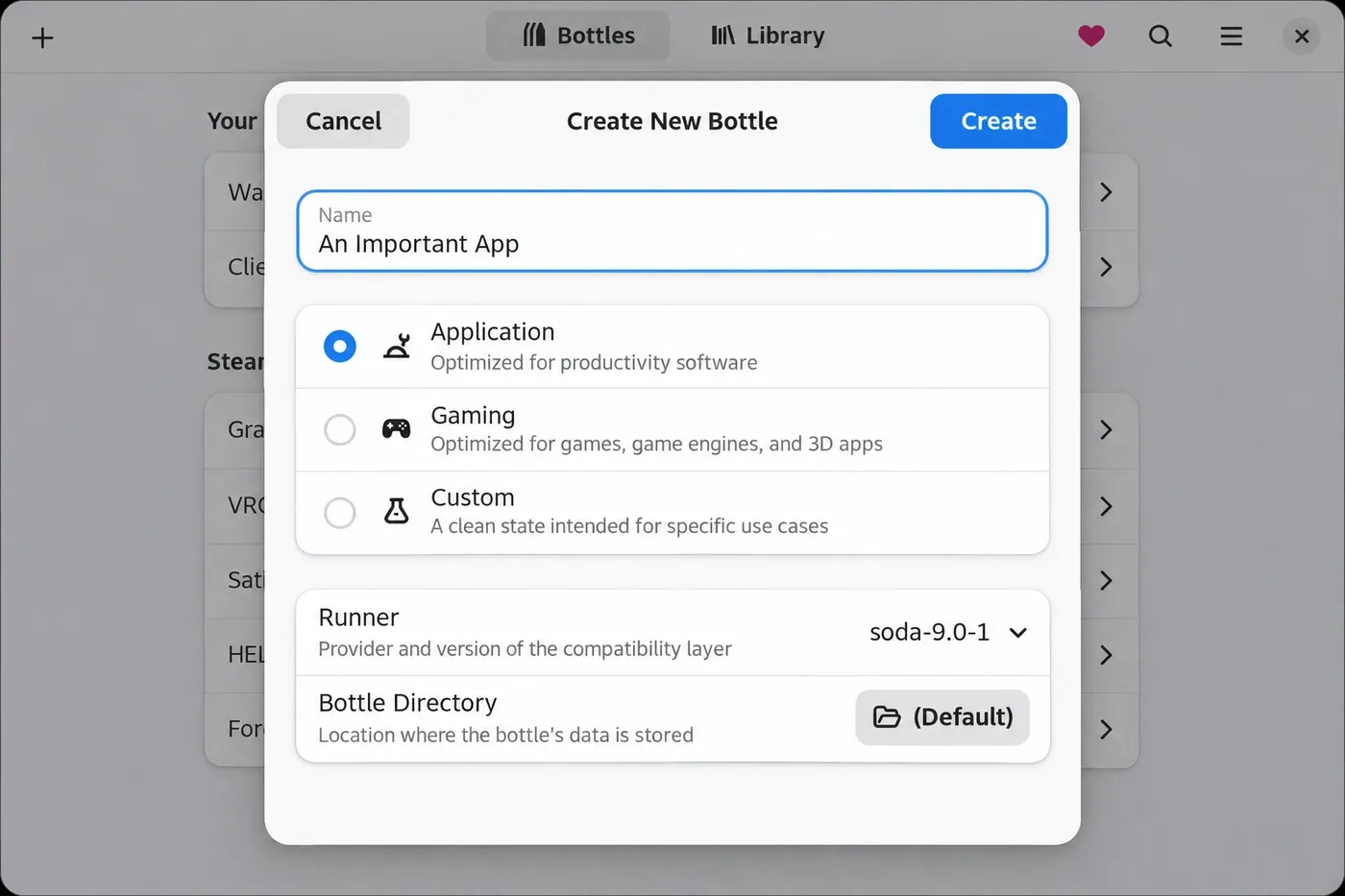
The Application environment supplies a starting configuration for desktop software. It isn't a compatibility certificate. Bottles' Run executable procedure opens the selected file in the selected bottle; it doesn't depend on Linux's file manager recognizing a double-clicked EXE.
If the installer or compatibility report targets a different processor architecture, stop and obtain the matching supported package or environment. A 64-bit Linux host alone doesn't prove that every Windows installer and its dependencies will work in the chosen bottle. Renaming an EXE or marking it executable doesn't resolve that mismatch.
Use your normal Linux account for the application. Don't prefix the Wine program launch with sudo, and don't grant an unfamiliar executable administrator access to Linux. A separate bottle keeps an app's configuration apart from other bottles; it isn't permission to trust the app or expose all your personal files.
Launch the installed program and verify the work you need
Return to the same bottle after installation. In Programs, use the installed application's play control. Bottles finds program entries from Windows Start Menu shortcuts. If the entry is missing, refresh that program list before reinstalling anything. For an unlisted portable program or an installation that didn't create a recognized shortcut, use Run executable to choose the program's actual executable in that bottle.
Launching the downloaded setup file again can reopen the installer or its maintenance screen. Find the installed program before treating that screen as an application failure. I'd keep the installer and the installed application distinct in any troubleshooting notes.
- Open a disposable copy of a representative file, including the features you need: for example, its formatting, embedded objects or application plug-ins.
- Save the result under a new name in an intended accessible folder. Keep the original unchanged.
- Close the program, launch it again from the same bottle and reopen the saved copy.
- Check the required output or connected-device operation separately. A working window doesn't establish printing, export, activation or hardware support.
When the saved file must go to another application or person, open the disposable output in that required application too. Check the formatting or data that must survive the exchange. Keep that result with your acceptance notes before moving production work to the Linux route.
If a required function fails, keep production work in its known working environment. Don't remove the backup or migrate the only copy of a project into the bottle because the first launch looked correct.
Match a failure to the stage that failed
| What you see | Check next |
|---|---|
| Bottles can't finish its initial component download | Record the download error and network stage. Finish onboarding before troubleshooting the Windows application. |
| The installer starts but reports a missing runtime | Identify the exact runtime and the app's requirements. Use a documented dependency for that bottle instead of downloading loose DLL files. |
| Installation completes but the program isn't in Programs | Refresh the list, then locate the installed executable. Reopening setup isn't the same as launching the program. |
| The program opens but can't find a Linux folder | Check the file chooser and Flatpak's access to that specific directory. Don't expose the entire home directory as the first fix. |
| The program crashes, freezes or fails a required task | Preserve the failing file copy, exact error and current bottle configuration. Check app-specific compatibility before changing the runner or adding dependencies. |
Bottles' dependency manager installs Windows libraries into a bottle. Add a runtime only when the application's requirements or a matching, credible report identifies it. Installing a collection of unrelated .NET and Visual C++ components makes the next failure harder to explain. Save work and back up a working bottle before changing its runner or dependencies.
Choose the backup type deliberately. Bottles' Full archive backup includes the bottle's files and configuration; a Configuration backup copies its configuration file. Neither makes a separate backup of documents you stored outside that bottle. Keep those documents backed up too, and don't share a full archive containing personal files as a routine bug report.
For a missing folder, Bottles' directory-access guidance recommends exposing individual directories instead of the entire home or system. Use the file chooser's permitted location first. If a specific additional folder is necessary, grant only that location using the documented Flatpak permission route and check it again after restarting Bottles. Permissions granted to the application still matter when it opens Windows programs.
For a crash, use Bottles' logging procedure to capture the failure stage. Keep the app version, Linux distribution, Bottles version, runner and exact symptom with the log. Remove private paths, usernames, license information and document content before sharing diagnostics. Don't apply an old Ubuntu repository command or a registry tweak from a different application's report just because both programs use Wine.
Switch to Windows when the required workflow needs it
Choose an approved Windows environment when compatibility work can't provide the required feature, vendor support or device access. A local VM keeps Linux running while hosting a separate Windows guest; a remote desktop runs the application on another authorized Windows system. Confirm licensing, available resources, file-transfer policy and the app's support for the chosen environment before moving your work.
For Windows 11, Microsoft's VM requirements include Secure Boot capability and a virtual TPM, along with the specified memory, storage and processor requirements. Check that your chosen Linux virtualization tool can provide the required configuration. A generic Windows ISO wizard doesn't establish eligibility, and a VM isn't a guarantee that every game, device driver or licensing system will work.
If you deliberately decide to boot Windows directly on the PC, use the separate Windows USB creation and installation checks from Linux. That route changes the operating-system installation plan and can erase data; it isn't needed merely to try a bottle. If your starting system is Windows and you want Linux tools alongside Windows apps, use the opposite route, WSL installation and first launch.
Keep the working route once the application passes its file and feature checks, and retain a recoverable copy before later changes. If the problem occurs inside a real Windows guest rather than Wine, continue with that exact Windows error and the relevant system repair checks.



