
If Run as administrator is missing in Windows 11, check which item you're opening and which menu you're using. In File Explorer, try Show more options; then compare the result with the built-in Command Prompt search result or Terminal (Admin) from the Start button's right-click menu. A missing menu entry, a launch that does nothing and a prompt asking for credentials need different follow-up checks.
I'd locate the intended program and compare those launch routes before changing Windows security. Don't give an unfamiliar download or script administrator access just to see whether the menu works. On a work or school PC, use the tool and account approved by IT.
Check the item and the full context menu
- Record where the option is absent: a Search result, a desktop shortcut, a file in File Explorer or the Start button's right-click menu.
- For a file in File Explorer, right-click the intended item and select Show more options. Microsoft's File Explorer instructions explain the streamlined and older context menus; an older extension can appear only in the fuller menu.
- Check what the item is. In File Explorer, select View > Show > File name extensions. Record whether you're opening the program, a shortcut, a
.cmdfile or a document intended to open inside another app. Don't rename an extension to make a different command appear.
Finding a command in the fuller menu resolves the immediate menu-location problem for that item. If it's still missing, keep the exact target and continue below. The fuller menu isn't a guarantee that every kind of file will offer the same action.
If your target is File Explorer itself, use the separate explanation of running Explorer with administrator permissions. Opening a protected folder and starting an administrator command window aren't the same task, and making the file manager run with more rights isn't the default solution here.
Compare built-in administrator launch routes
Use a known Windows tool for this comparison. You don't need to enter a repair command merely to find out whether its administrator launch is available.
- Open Start, type Command Prompt and locate the Windows app result. Right-click that result and look for Run as administrator. This is the launch route in Microsoft's SFC instructions. Selecting Open alone is a different action.
- If that entry is missing or doesn't respond, right-click Start or press Windows + X. When offered, choose Terminal (Admin) or Windows Terminal (Admin). The Windows Terminal FAQ documents the administrator Quick Access route.
- If the administrator Terminal entry is absent, record that too; its absence alone doesn't establish that your account has lost its rights. Observe whether the available launch route shows the expected permission prompt, requests administrator credentials, reports a restriction or does nothing. Approve only the trusted program you deliberately opened and only when you're authorized to do so. Close the comparison window when finished.
If the Start menu still finds the Windows Command Prompt app but its administrator action is missing, select that result and press Ctrl + Shift + Enter. A moderator describes this alternative in the Microsoft Q&A discussion of the missing menu. The same authorization and prompt checks apply.
An ordinary Terminal window doesn't gain administrator rights because you open a Command Prompt tab inside it. Microsoft also states that mixing administrator and ordinary tabs in one Terminal window isn't supported. Start the separate administrator window through its explicit launch route.
| What you find | What to do next |
|---|---|
| The fuller file menu has the command | Use it for the intended trusted program and check the prompt. No registry change is needed to reveal that menu. |
| Command Prompt or Terminal (Admin) works, but one target lacks the option | Record that target's file type and launch location. Ask the app vendor about its supported administrator launch method. |
| The command exists but clicking it does nothing | Record it as a launch failure. Compare the built-in route and review recent context-menu software changes. |
| Windows requests credentials or denies the request | Follow the administrator or IT route. Restoring a menu entry won't supply the required authorization. |
| The command is absent across built-in apps and menus | Collect the scope and account comparison for support before attempting broad system repair. |
Read the prompt before approving it
Being listed as an administrator doesn't make every app run with administrative access. Microsoft's UAC explanation describes the separate standard and administrator tokens. A standard user needs valid administrator credentials; an administrator in Admin Approval Mode normally encounters a consent prompt, though policy can require credentials.
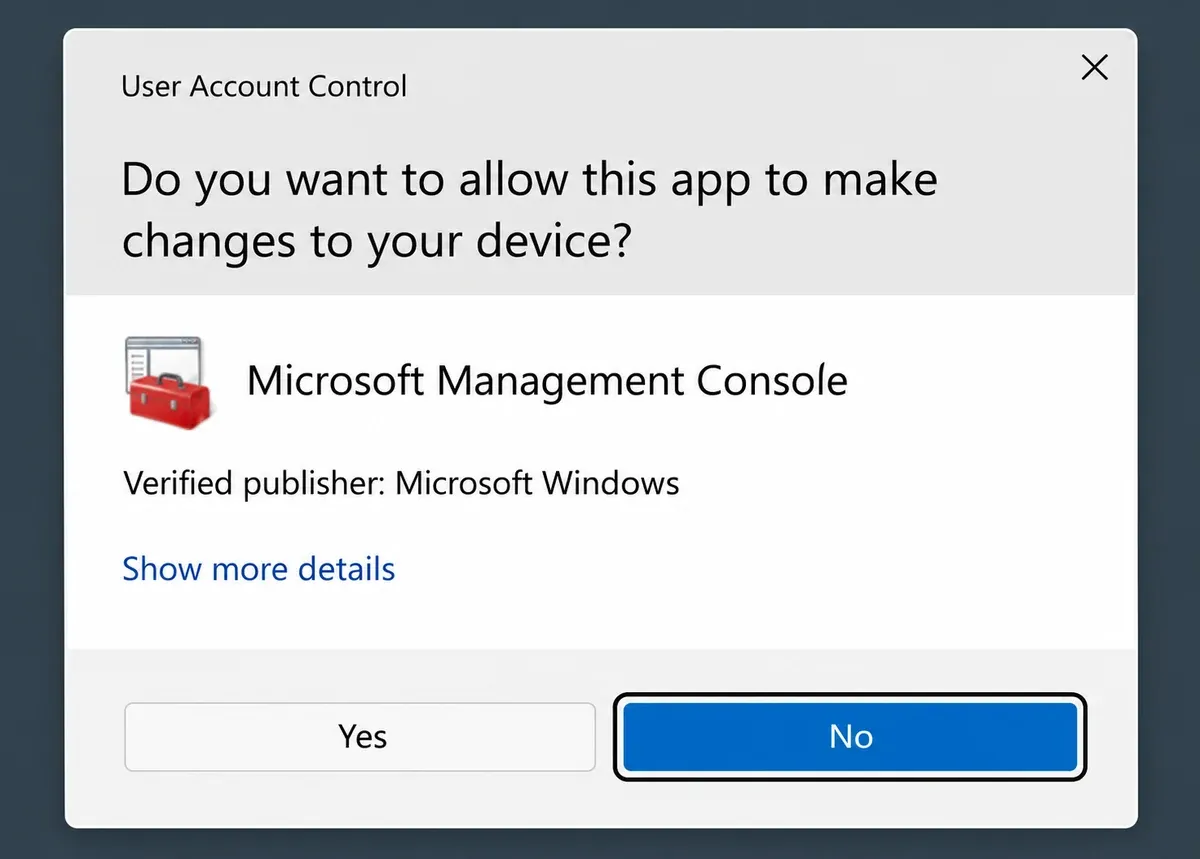
If you can't supply the requested authorized account, cancel. If Windows presents only a refusal or your organization blocks the request, ask the PC administrator to inspect the account and applicable policy. Microsoft's UAC settings include automatic denial of standard-user requests; a blocked launch isn't proof that your files or account are corrupt.
I wouldn't disable UAC, activate a hidden administrator account or grant everyone full control to restore a missing menu item. Those changes affect security far beyond the symptom and don't establish why this particular launch route failed.
Narrow a menu or account-specific failure
Keep the built-in comparison result. If Terminal (Admin) opens through the approved prompt but the original context-menu action doesn't, support can focus on that failing launch route. If only a particular script or shortcut is affected, give its file type and target to the responsible app vendor; don't import an association file from an unrelated forum reply.
Published reports show why I wouldn't prescribe one universal repair. In a Microsoft Tech Community discussion about an unresponsive administrator action, the original Windows 11 beta user reported that Terminal (Admin) worked and removing NCH Express Zip restored the failing action. Other visible replies describe different outcomes, including a case where removal didn't help. That is a reason to examine the timing of a specific app's context-menu integration, not to remove every NCH product.
Record any archive utility, context-menu customization or app installation changed just before the failure. Give that history to IT or the vendor. On a managed PC, have IT handle the software change; on your own PC, use the vendor's supported update or repair instructions for the identified product rather than deleting unrelated shell entries.
An account comparison can also be useful without abandoning your current profile. In a separate Microsoft Q&A thread about the missing command, the owner reported that another local administrator account didn't share the symptom, while an in-place repair hadn't resolved it. Have support compare an existing authorized account if available. A working second account narrows the scope; it doesn't prove which setting is wrong or require deleting your original account.
Verify the original task and report the result
Return to the original trusted target and launch location. Confirm whether the command is present, whether its prompt identifies the intended app and whether the authorized task now opens. A working alternate route can let you continue that task while the menu problem remains unresolved.
If your original problem was the message that SFC requires an administrator console session, continue with that page once the proper console opens. It covers the repair sequence and the meaning of that specific error; there's no need to run the entire sequence just to diagnose this menu.
For unresolved cases, send support the Windows version, intended app and file type, exact menu or Search location, built-in launch results, prompt or error wording and relevant software-change history. Redact account names and personal paths from shared images, and never send passwords. Use the system repair hub for a specific follow-up error rather than applying a reset or registry-cleaning recipe to an unidentified launch problem.



