
To recover a corrupted personal file in Windows 11, preserve the original and look for a usable version from before the damage. Check your existing backup, File History or OneDrive version history before trying a repair tool. If no good copy exists and the drive reads normally, work on a duplicate with the repair feature for that file's actual format.
I'd choose an earlier working copy before trying to rebuild damaged contents. A file appearing in a recovery program with the right name doesn't establish that its document, photo or video data is intact.
Protect the original and identify the failure
Record the full filename, format, location, app version and exact error. Note whether the file came from a download, an interrupted save, a backup or a recovery program. Keep that information private when it includes account names or personal paths.
Check that the intended app supports the actual file format, then try a known-good file of that same format in the app. If that also fails, keep the application error for support before declaring both files corrupt. Renaming a file extension doesn't convert or rebuild its contents.
If storage reads consistently, copy the damaged file to a separate working location and keep the original untouched. Make each repair attempt on a duplicate. If copying repeatedly fails, the drive disappears or other files become unreadable, stop the repeated reads and use the storage-warning and data-preservation checks. Don't format or initialize a drive containing the only wanted copy.
| What you have | Best next route |
|---|---|
| A saved version from before the damage | Restore a separate copy and check its contents. |
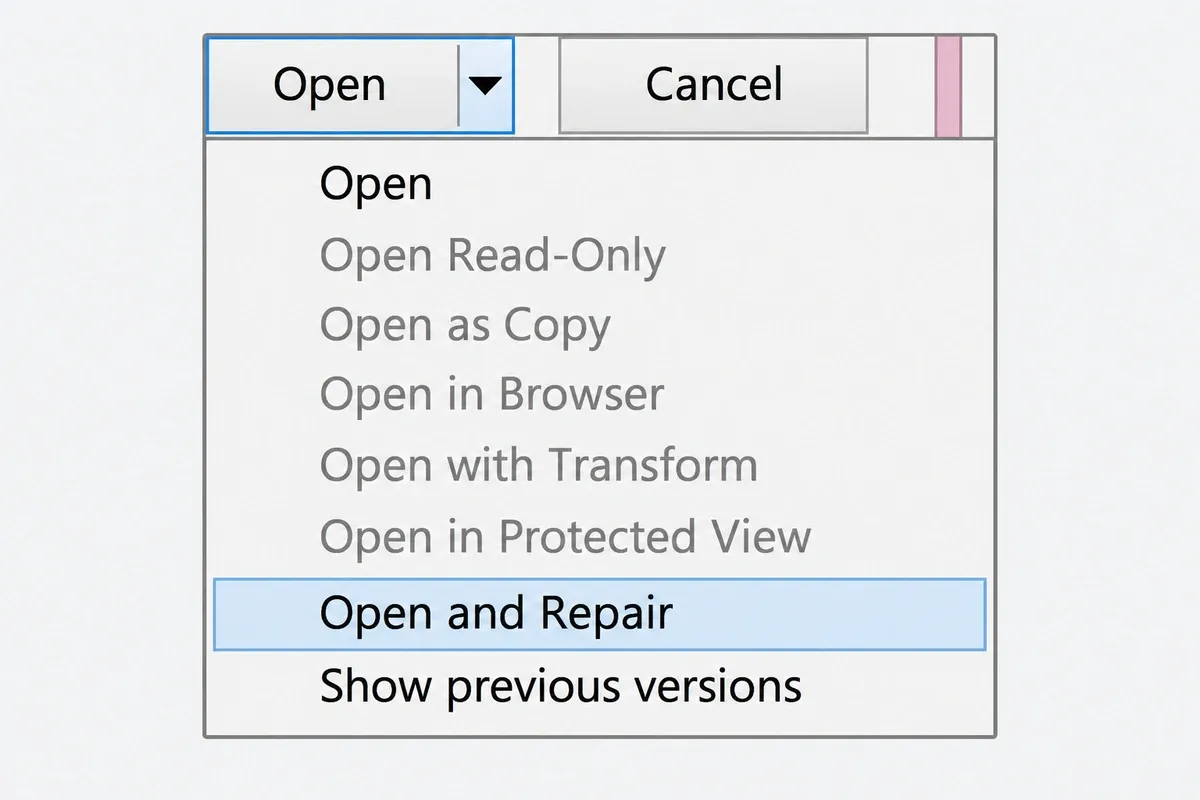
| An Office document on stable storage | Try Open and Repair on a duplicate. |
| A deleted or missing local file | Check backups, then assess local data recovery. |
| A drive with recurring read errors | Preserve the device and arrange recovery assessment. |
| A personal file you have decided to discard | Use the separate deletion procedure. |
If you no longer need the contents, follow the corrupted-file deletion and exact-error checks. Deleting the damaged item is a different task from recovering its contents. For an ISO that won't mount, use the disk-image format and download-verification checks instead of an Office repair command.
Restore a good version before repairing the file
Start with a backup made before the failure. Restore into a different folder when the backup product offers that choice, then open the restored copy. A new backup of today's damaged file preserves that state; it doesn't create yesterday's working version.
For files previously covered by File History, Microsoft's previous-version restoration instructions provide this route:
- In File Explorer, go to the actual folder that contains or used to contain the file.
- Right-click the folder and select Restore previous versions. Check the available dates for a version from before the damage.
- Select that version. Expand Open and choose Open in File History to inspect the saved contents.
- Expand Restore and choose Restore to... to use a different location. Check the destination before confirming.
The ordinary Restore action replaces the current file or folder, and Microsoft warns that the replacement can't be undone. Use the separate-destination option to protect the copy you already have. If the list is empty, check that the expected backup location is available and the correct folder was selected; turning on File History now won't manufacture an earlier saved copy.
For a file stored in OneDrive, preserve a copy of its current state outside the synced folder first. Sign in to the correct OneDrive account, select the file, right-click and choose Version history. Use the ellipsis beside the intended older version and select Restore. Microsoft's OneDrive version-history guidance says the selected version becomes current and the former current version moves into the history list.
An older version may open correctly while missing your latest work. Check its date and required content before replacing anything. Keep later copies for comparison or separate salvage rather than overwriting them merely because the older file opens.
Choose the version by the last known good content, not simply the newest date. Work or school administrators can disable document versioning; ask your administrator about available retained versions if the expected history is missing. Don't change organization settings or assume every file was covered by a backup.
Try Office Open and Repair on a working copy
For a trusted Word document, Excel workbook or PowerPoint presentation, the desktop app has a format-specific recovery option. Microsoft's Open and Repair procedure says to use the Open dialog rather than the Recent list:
- Make a working copy of the file on stable, accessible storage.
- Open the appropriate desktop Office app and choose File > Open > Browse.
- Select the working copy. Click the arrow beside Open, then choose Open and Repair.
- If it opens, save the result with a different name and inspect the content before using it.
In Excel, choose Repair first. If that fails, Extract Data can try to retrieve values and formulas, as explained in Microsoft's corrupted-workbook recovery instructions. Treat extracted data as salvage to verify, rather than assuming the whole workbook has been restored.
If a disk or network error prevents opening an Excel workbook, Microsoft recommends moving it to a different disk or from the network to a local disk before attempting those recovery options. Make that a copy when reads are stable, keeping the source. Stop if copying produces recurring read errors; running more document repairs won't resolve an unavailable drive.
Match other file types to their own recovery tools
A PDF, camera RAW file, ZIP archive, database and video container don't share one repair procedure. Identify the format and the app that created it, then use that publisher's recovery instructions on a duplicate. If the file was downloaded and contains no unique changes, obtain another complete copy from the trusted sender or publisher rather than modifying the only damaged download.
For a damaged recording that can still be copied reliably, use the video-container and unfinished-recording repair checks. They separate a readable clip that needs remuxing or conversion from an MP4 or MOV that needs a matching healthy reference; keep the original untouched.
Don't upload confidential documents, private photos or work files to an unfamiliar online repair service. On a managed device, use your organization's approved recovery route. A repair attempt also isn't a reason to enable unexpected macros, disable security controls or run a program supplied with an unknown file.
The Handy Recovery discussion about unreadable recovered files makes the format distinction explicit: its respondent says there isn't one universal repair service for every file type. The user's report that several recovery tools produced unusable files doesn't identify which paid repair product will succeed.
Separate lost-file recovery from content repair
If the intact file was deleted or lost from local storage, Microsoft's Windows File Recovery instructions describe a different operation: searching for recoverable data on the source and writing recovered files to a destination drive. This isn't a universal editor for repairing a damaged document that you can already open from disk.
Minimize use of a drive after losing files because new writes can overwrite recoverable space. Don't install recovery tools onto the affected source or create a new partition for the results. The source and destination must differ; use a separate external destination rather than writing recovered data back over the source. Windows File Recovery doesn't support cloud storage or network shares.
If the only important copy is on an unstable drive, stop for recovery assessment before a long scan. A historical RAW external-drive recovery question describes programs finding files but losing names and folder structure, then hanging. Its suggested tools don't document a confirmed resolution. Finding items in a scan and safely recovering usable contents are separate results.
Keep Windows system repair separate too. System File Checker checks Windows system files; a successful scan doesn't reconstruct the missing contents of your own spreadsheet or photograph. If SFC reports a clean result while your original problem remains, use the clean-SFC result and symptom checks instead of repeating scans to repair that personal file.
Verify the recovered content before replacing anything
Open the recovered copy in its intended app. Check the pages or sheets you need, formulas and totals, embedded images, or the full relevant section of a video. Save a separate copy, reopen it and confirm the content remains usable. Record what is missing as well as what returned.
When assessing a recovery tool, inspect a real content preview if one is available, not just its file list or a thumbnail. Verify each important sheet or page in the saved result. A partial preview can help you assess a candidate; it doesn't establish that unseen parts are recoverable.
A public laptop-data recovery report describes the same filenames, folder layout and apparent sizes after recovery, yet none of the files opened. The sole displayed reply suggests other tools without a confirmed outcome. Use actual content checks before buying a tool, replacing a good backup or discarding the original.
Keep the damaged original and the usable recovered copy until you have verified the important contents and made a separate backup. If no version or format-specific attempt works, give trusted support the file type, exact error, storage behavior, backup dates and results already collected. The Windows system repair hub connects the related file and recovery decisions.



