
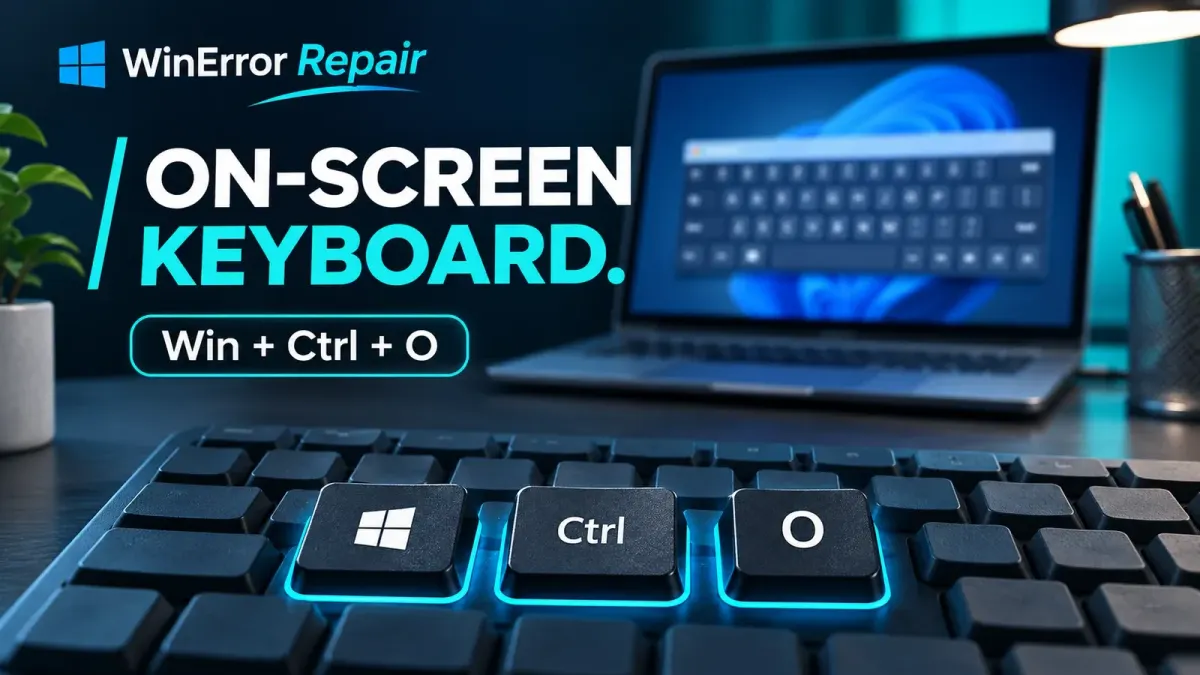
Press Windows key + Ctrl + O to open the On-Screen Keyboard (OSK) in Windows 11. Hold Windows and Ctrl, press the letter O, then release the keys. If the physical keyboard can't send that combination, use Start > Settings > Accessibility > Keyboard > On-Screen Keyboard with your mouse or touchpad.
I'd use the built-in OSK before downloading a virtual keyboard. It works without a touchscreen and gives you a way to enter text while you check a failed physical keyboard. Opening it doesn't establish why the physical keyboard stopped working.
Choose a launch route that your available input supports
Microsoft lists Windows key + Ctrl + O as the OSK shortcut. Windows key + U opens Accessibility settings if you can use that combination but prefer to choose the keyboard control there.
- Working shortcut keys: Press Windows key + Ctrl + O.
- Pointer available after sign-in: Click Start, Settings, Accessibility, then Keyboard. Turn on On-Screen Keyboard.
- At Windows sign-in: Select Accessibility in the lower-right corner, then On-Screen Keyboard.
- No working input: Use a working input device or your established assistive method. Ask IT or the PC maker if neither is available.
The Windows OSK instructions confirm the Settings and sign-in routes. A mouse, touchpad or another pointing device is enough; touch support isn't a requirement. At sign-in, use the control on the Windows screen rather than trying to reach desktop Settings first.
Enter text and find the input options
- Open the app or field where you want to type. Select that field with your pointer.
- Select the keys on the OSK, then check that the intended field receives the characters.
- Select Options on the keyboard to change how you select keys or to enable its numeric keypad.

Start with Click on keys if clicking or tapping is comfortable. The independent AbilityNet OSK walkthrough also shows the hover and scan controls. When holding a pointer still is easier than repeated clicking, select Hover over keys and adjust Hover duration. The character is entered after the pointer remains over the key for that delay, so check the chosen setting in a harmless text field before entering a password.
Scan through keys highlights areas of the keyboard in turn. Set Scanning speed and the selection input that you can operate. Microsoft documents keyboard-key, mouse-click and gaming-device choices. Preserve the assistive method you already rely on instead of changing several options together.
Enable Turn on numeric keypad when you need its number pad. Use Text Prediction suggests words, and Insert space after predicted words adds a space after a selected suggestion. Microsoft lists English, French, Italian, German and Spanish for text prediction; the relevant language files must be installed. These controls change text entry; they don't repair a disconnected keyboard.
Restore the letter keys if only navigation controls appear
Select General on the OSK to return to the full keyboard. The Nav layout contains navigation keys such as Tab, Enter, Space and arrows. Microsoft says the OSK remembers the last layout, including a layout selected at sign-in. Closing and reopening it won't reset that choice.
This is a useful distinction when the window opens but there are no letters to select. Change the OSK layout before treating that appearance as a driver failure.
Choose OSK or the touch keyboard deliberately
The accessibility OSK and the taskbar touch keyboard have different controls. If you specifically want the Windows 11 touch keyboard button, right-click the taskbar, choose Taskbar settings, and under System tray icons set Touch keyboard to Always. Then select the taskbar keyboard icon to display it. Microsoft's touch keyboard controls also offer Never and When no keyboard attached.
Choose the OSK for its click, hover and scan options. Choose the touch keyboard icon when that is the Windows input panel you want to show. A hidden touch keyboard icon doesn't mean the OSK shortcut has been removed. Keep the two settings separate when checking which keyboard should open; changing the touch keyboard icon won't select an OSK hover or scan method.
Close the keyboard and check the original problem
In hover mode, restore a minimized OSK by pointing to its taskbar entry. In scanning mode, use the scan key you selected. Microsoft documents these recovery methods so you don't need to change your input mode just to bring the keyboard back.
Close the OSK window when you've finished. To check your typing setup, reopen it through your chosen route, select a nonsensitive text field and enter a short sample. Confirm that the letters, spaces and selection method do what you intend before returning to the original task.
If OSK input works but the physical keyboard still fails after an update, continue with the physical keyboard checks after a Windows update. That guide separates sign-in, connection, settings and driver failures. A security shortcut has a separate path: use the Ctrl+Alt+Delete session and key checks when that is the specific command that fails. The devices and drivers hub collects related input troubleshooting.


