
To move Vivaldi to a new Windows 11 laptop, install Vivaldi from its official site, then use Settings > Sync on both computers with the same Vivaldi account and encryption password. Keep the old laptop and its browser data until you've checked bookmarks, passwords and important tabs on the new one. If you don't want Sync, export and import the individual data types instead of assuming a copied profile will preserve every sign-in.
I'd start with Sync and a separate copy of anything irreplaceable. It lets you keep two independent installations while transferring supported data; replacing a whole profile adds restrictions that matter when you still need the old computer.
Choose the transfer route before changing the old laptop
Vivaldi's current transfer guidance recommends Sync or export/import before replacing a full profile. Choose from the data you still have:
| Your situation | Start here |
|---|---|
| The old Vivaldi still opens | Check its data, then use Sync or targeted exports. |
| The old laptop is unavailable, but it previously synced | Use that account plus its encryption password or previously saved backup encryption key. |
| You have export files | Import each supported type; a bookmarks file isn't a full browser backup. |
| You only have a profile-folder backup | Read the profile limitations below before replacing anything. |
Download a fresh installer from the official Vivaldi desktop page on the new laptop. Don't copy the old program folder as the data-transfer method. If Windows blocks the installer because the laptop is in S mode, review the S mode compatibility and permanent-exit decision before changing that restriction; a browser migration doesn't require buying Windows Pro.
On the old computer, identify what you need: bookmarks and Speed Dials, saved website passwords, notes, reading list and important tab addresses. Keep downloaded documents and any local attachments separately. Don't assume a browser-data transfer has also moved files stored elsewhere on the disk.
Sync the two independent installations
- On the old laptop, open Vivaldi's Settings > Sync. Sign in to the Vivaldi account you intend to use. If setting up Sync for the first time, follow the account and encryption-password prompts.
- Select the data types you want and choose Start Syncing. Check that the old browser has the data before relying on what it uploads.
- On the new laptop, open Settings > Sync and sign in to that same account.
- Enter the existing encryption password. If you previously saved a backup encryption key, use Load Encryption Key when the encryption prompt offers it, then select the key file.
- Enable the required data types and start syncing. Allow the initial transfer to finish before judging missing items; larger profiles can take longer.
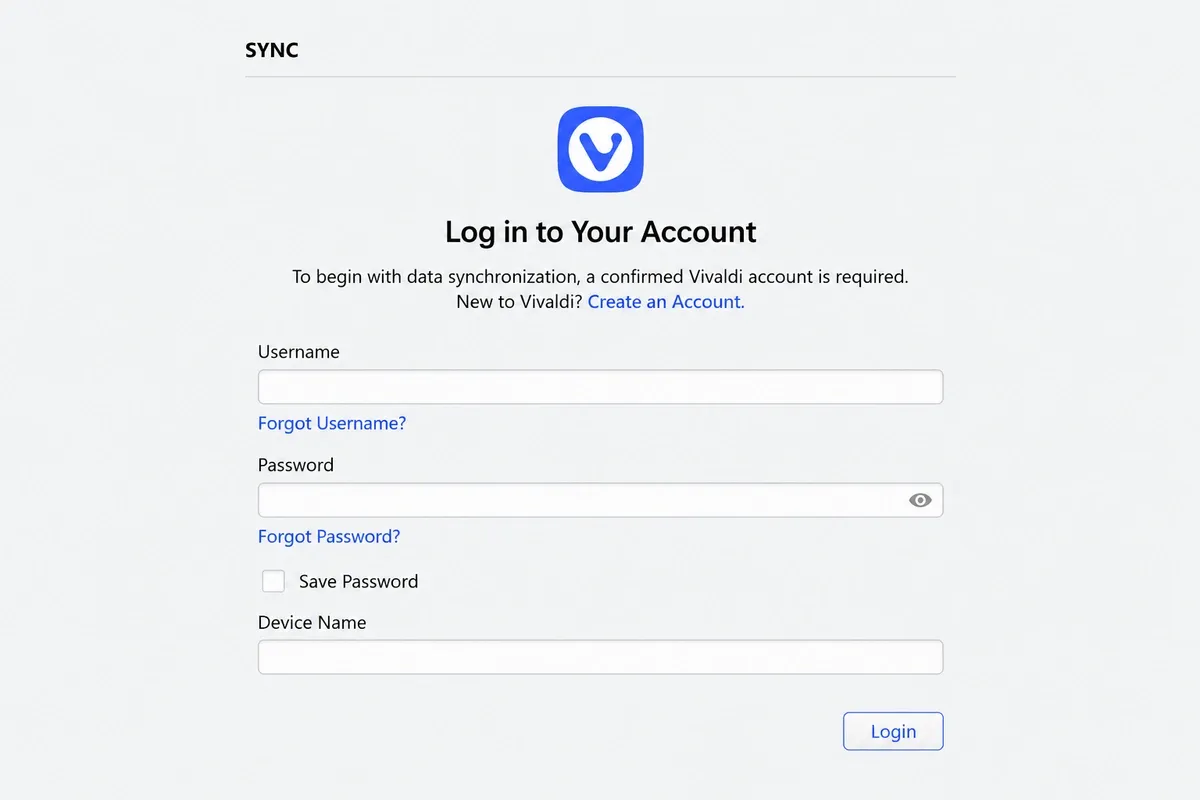
The official Sync instructions distinguish account login from data decryption. Changing your account login password doesn't automatically change the encryption password. Don't delete the remote data from an empty new installation just because the second password is unfamiliar.
Sync supports bookmarks and Speed Dials, some settings, stored webpage passwords, autofill, history, extensions, web apps, reading list, open tabs and notes without attachments. It isn't a promise to clone every setting, local file or complete workspace. Check Mail, Calendar, attachments and other essential features separately rather than treating a successful login as proof that everything moved.
If you use several Vivaldi browser profiles, inventory and transfer each one separately. The Sync guide says each profile currently needs a separate Vivaldi account for synchronization. Don't sign unrelated profiles into one account expecting their data to stay separate.
To find the old laptop's open tabs, look for Synced Tabs in the Tab Button menu or the Windows and Tabs Panel. Open the pages you need on the new device. Seeing remote tabs there is different from restoring the old window arrangement as a local session.
Vivaldi says local data is merged with the account's existing data when you enable synchronization. Keep a separate export of important bookmarks before reorganizing them across synced devices.
Transfer without Sync
Use Vivaldi's export and import controls for the types you need. Transfer the files through storage you control, and check each import before removing the source.
- Bookmarks: on the old computer, choose Vivaldi menu > File > Export Bookmarks and save the HTML file. On the new one, choose File > Import from Applications or Files, select Bookmarks HTML file, then Start Import and choose your file.
- Notes: use File > Export > Export Notes. To import the resulting text or Markdown files, use Import from Applications or Files > Notes Folder and choose their folder.
- Reading list: use File > Export > Export Reading List, then import through Reading List (CSV) on the new laptop.
Imported bookmarks appear in a new folder among your bookmark folders, according to Vivaldi's bookmark import instructions. Check that folder before concluding the import failed or repeatedly importing the same file.
Password export exposes the saved passwords in a readable CSV file. Use it only if you can protect the file during transfer and remove the temporary copies afterward. Choose a temporary export folder outside automatic cloud synchronization so the CSV doesn't create extra copies you overlook. Don't email it to yourself or place it in an ordinary shared folder.
- On the old computer, choose File > Export > Export Passwords and complete the identity check Windows presents.
- Transfer the CSV using a protected method you control.
- On the new laptop, enter
vivaldi://password-manager/settingsin Vivaldi's address bar. Under Import passwords, choose Select file, select the CSV and open it. - Verify an intended saved login, then remove the temporary export from the transfer location and both computers. Retain any needed backup only in protected storage.
The password export and CSV import procedure doesn't transfer a website's existing signed-in session. Be ready to authenticate again, including any required second factor.
Why a profile copy isn't the default
A copied profile isn't a reliable shortcut for passwords and cookies. Vivaldi explicitly says those won't transfer between computers or Windows users with a profile move. Its guidance also warns that two installations must not use copies of the same profile: identifiers inside it must remain unique, and duplicate profiles can disrupt Sync and OAuth mail accounts.
If you need data outside Sync and the export options, follow the full-profile move restrictions and procedure. Locate each installation's actual profile through Help > About or vivaldi:about, then Profile Path > Open Profile Folder. Don't assume every profile is named Default or guess its location from another user's Windows path. If you need help opening the file manager, use the File Explorer opening steps, then navigate to the path Vivaldi actually reports.
Before handling profile files, quit Vivaldi on both computers. Preserve inactive backups of the source and destination profiles before replacing the destination; keep those backups separate from the live profile folders. A full-profile move replaces the destination; it isn't a merge of two browsers' tabs and settings. Keep any retained source backup inactive, and don't continue using the original and its moved copy as two live installations. If you need both laptops in use, return to independent profiles with Sync or exports.
For tabs you only want to revisit, preserving their addresses is simpler than depending on an old session file. Vivaldi's bookmark controls let you save a page with Ctrl + D; bookmark the essential pages before exporting. A saved session is useful locally, but creating one doesn't by itself transfer it to the new laptop.
If the old laptop or Sync is unavailable
If the old laptop is gone, first determine whether its Vivaldi ever synced or whether you have usable exports or a profile backup. Installing the same browser on a new PC doesn't recreate data that existed only on the old disk.
For previously synced data, try the known encryption password or the backup encryption key saved while you still had access. Vivaldi warns that resetting the encryption password deletes the remote Sync data before uploading from the current device. If the old data isn't stored locally anywhere and you don't have a working decryption method, that reset can discard what you hoped to recover. Sync itself isn't a guaranteed backup service.
If Sync won't connect, use the service-status and Sync error checks before resetting anything. Record the failure stage: account login, decryption or data synchronization. Keep private account details, key files and password exports out of public screenshots. On a managed laptop, ask IT about browser and account policies rather than bypassing them.
Verify before retiring the old computer
A 2023 new-laptop discussion records a successful Sync login. A different tab-transfer thread records failed session-copy attempts, later restored tabs and a subsequent startup problem that the owner said cleared after rebooting. Those are different outcomes, not a reason to promise every old profile will move intact.
On the new laptop, open several important bookmarks, check the expected Speed Dials, verify an intended saved login and find the old device's important tabs. Review notes and any attachments separately. Close and reopen Vivaldi, then repeat the essential check. Keep the old data until the features you actually use work on the destination.
If something is missing, identify its data type and transfer route before repeating imports or replacing folders. Keep the exact Vivaldi versions and error privately for support. The Windows desktop hub covers the separate Windows navigation and shell problems if you can't reach your files.



