
To hide a System Reserved drive from This PC, remove its assigned drive letter in Disk Management where Windows allows that change. Keep the partition itself. First confirm which volume the letter belongs to; if the controls are unavailable or the boot layout is unclear, stop rather than force the change with DiskPart or a partition tool.
I'd treat this as a drive-letter task on a PC that already starts normally. Deleting a small partition to tidy File Explorer creates a much larger problem than leaving its icon visible.
Identify the visible volume before changing it
- In File Explorer > This PC, record the exact label and letter of the unexpected drive. D: is common in examples, but it isn't a fixed system-reserved letter.
- Right-click Start > Disk Management. You can also press Windows + R, enter
diskmgmt.mscand select OK. - Expand the lower disk map. Match the letter to its volume, then record the disk number, partition size, filesystem and status. Include the other internal disks in your record. Don't select a target from its label alone.
- Keep a current backup of important files. If this is a managed PC, have its administrator confirm the target and make the change.
Microsoft's Disk Management overview explains that a physical disk can contain several partitions. It also warns that EFI and Recovery can appear 100% free while holding critical files. Neither a small size nor that percentage makes a partition disposable.
A label such as System Reserved doesn't establish the complete boot arrangement. An old installation or cloned drive can leave more than one small partition, and boot files need not be on the same physical disk as the Windows volume. If you can't identify the displayed letter confidently, keep the map for support and leave the layout unchanged.
Separate the partition roles
| What you see | How to handle it |
|---|---|
| System Reserved with an unexpected letter | Verify its role and current assignment before using the conditional letter-removal steps below. |
| EFI System Partition, Recovery or another protected partition | Leave its contents, type and permissions alone. Ask support about an unexpected mount or unavailable controls. |
| C: or a volume holding Windows, apps or needed personal files | Keep its assignment. This isn't a disposable Explorer entry. |
| The same removable drive listed twice | Compare both paths; a duplicate navigation entry is a different task. |
Microsoft's BIOS/MBR partition guidance describes an active system partition and says system partitions normally stay out of File Explorer. Its UEFI/GPT layout separates the EFI System Partition, Microsoft Reserved partition, Windows and recovery. The Microsoft Reserved partition isn't an ordinary data volume to expose and browse.
Don't apply a fixed Disk 0 or Partition 1 instruction to make your layout match a tutorial. Don't change the partition type, mark a different partition active, format anything or select Delete Volume. Those operations aren't required to remove an Explorer letter.
Remove only the verified letter
Use this branch only after the intended assignment has been identified and Windows offers the controls. In a Windows 11 System Reserved discussion, the accepted advisor answer directs the user to remove the letter through Disk Management and warns against deleting the partition. That advice doesn't override a protected-volume restriction on your PC.
- Open Disk Management with administrator permissions. If necessary, search for Computer Management, choose Run as administrator, then open Storage > Disk Management.
- Right-click the exact volume you identified, then select Change Drive Letter and Paths.
- Select the recorded drive-letter assignment in the list. Choose Remove, then read the confirmation before proceeding.
- Confirm only if the letter is the intended one and no warning identifies a dependency or a volume you still need to access. If applications are using it, close the dialog and investigate that use.
- Close the dialog and open a fresh File Explorer > This PC window. Check whether the unexpected letter has disappeared.
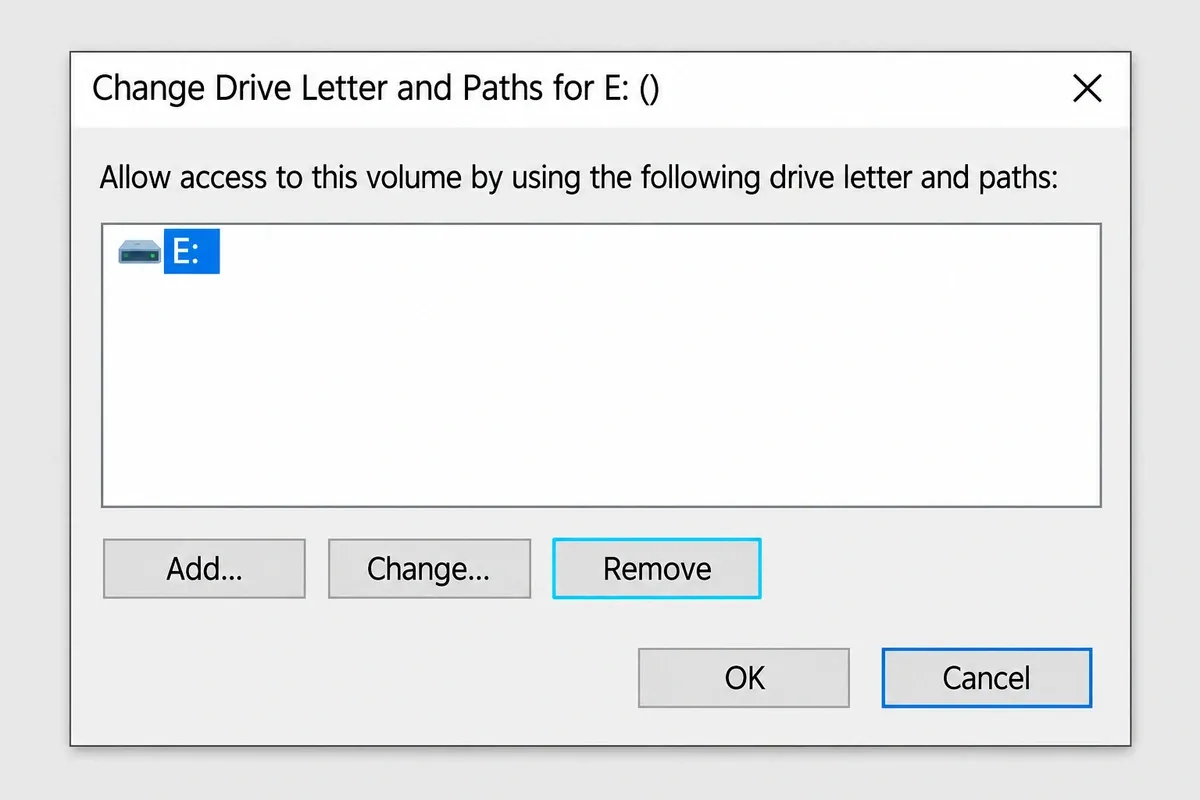
The native Disk Management method in the EaseUS guide uses this Remove control. Its separate partition-type command is a different operation; don't substitute it when Windows refuses a letter change. A third-party partition manager isn't needed to use an available Windows dialog.
Stop if Windows protects the volume
If Change Drive Letter and Paths is missing, gray, or returns an error, save the exact state and stop this branch. Microsoft's drive-letter instructions distinguish inaccessible EFI/Recovery partitions, insufficient permissions and other volume conditions. They recommend Microsoft or PC-manufacturer support when an accessible formatted volume still won't allow its assignment to change.
Don't initialize an existing disk or format a partition to enable that menu. Don't take ownership of boot folders or disable protection. Microsoft's DiskPart remove reference explicitly excludes system, boot and paging volumes, OEM partitions and special non-data GPT partitions such as EFI. A copied command isn't a supported escape from those restrictions.
I'd leave the icon visible while support identifies an uncertain boot layout. Hiding it doesn't reclaim the partition's space, add free space to C: or repair an update. If Setup says We couldn't update the system reserved partition, use the separate boot-partition identification and free-space checks; removing a letter doesn't answer that failure.
Verify the result without deleting anything
After a permitted letter removal, confirm that the partition remains in Disk Management with the same size and position. Check that C:, your ordinary data drives, usual apps and representative personal files still open. The intended result is one fewer letter under This PC, with the partition retained. If the result differs, record it and stop further storage changes.
If you removed a needed ordinary data-volume letter by mistake and Windows still runs, use your original map to identify that same volume. Microsoft's assignment procedure uses Change Drive Letter and Paths > Add to assign an available letter. Restore the recorded letter only if it is still unused and the target is certain. Don't add letters to EFI or Recovery to imitate an undo procedure.
A Tom's Hardware multi-disk discussion illustrates why old-drive advice needs context: the owner reported that Windows still started with that old SSD disconnected. It doesn't establish that your similarly named partition is unused. Leave physical-drive removal and boot-file migration out of this display change.
If a wanted data drive is missing, follow the missing-drive and file-preservation checks. If both Explorer entries open the same readable volume, use the duplicate navigation-entry guide. For an unresolved System Reserved letter, give support the Windows version, full disk map, exact letter, recent installation or cloning history and any error from the dialog. Keep personal paths and recovery keys out of screenshots. The startup and recovery hub groups the separate boot and installation tasks.



