
DISM error 1726 means “The remote procedure call failed.” Save the command, the final error and the latest DISM log before changing anything. Then check whether you were repairing the Windows installation you're using or an offline installation. Those two cases need different commands, and the error alone doesn't establish that the RPC service is disabled.
For a Windows PC that starts normally, I'd begin with the online repair checks below. If you're at a recovery command prompt or servicing another drive, go to the offline target checks. General repair routes live in the Windows system repair hub.
Record the operation that failed
Microsoft defines 1726 as RPC_S_CALL_FAILED. That's a failure description, not a diagnosis of your registry, network connection or component store. Record the complete wording; if the console also says an error occurred closing a servicing component, keep that line too.
Before another attempt, save these details with the time of the failure:
- The exact command, including
/Onlineor/Image:, the operation and any source path. - The DISM version and image version printed at the start, followed by the final error. Keep the percentage if one was shown, but don't use a percentage alone to choose a fix.
- Whether you're in the installed Windows desktop, Windows Recovery Environment, Windows PE or another PC servicing this drive.
- The Windows version, edition and recent update or servicing change, if known.
A failed /ScanHealth, /RestoreHealth or /StartComponentCleanup isn't the same event. Keep cleanup separate from repair. Adding /ResetBase or copying a chain of cleanup commands doesn't establish why an RPC call failed.
Retry the online repair with a clear baseline
Use this branch when Windows starts and you're repairing that running installation. Let an update or servicing operation already in progress finish. If Windows requests a restart, complete it before starting a new repair. Check for applicable updates through Windows Update; install the updates your PC is offered and complete their restarts.
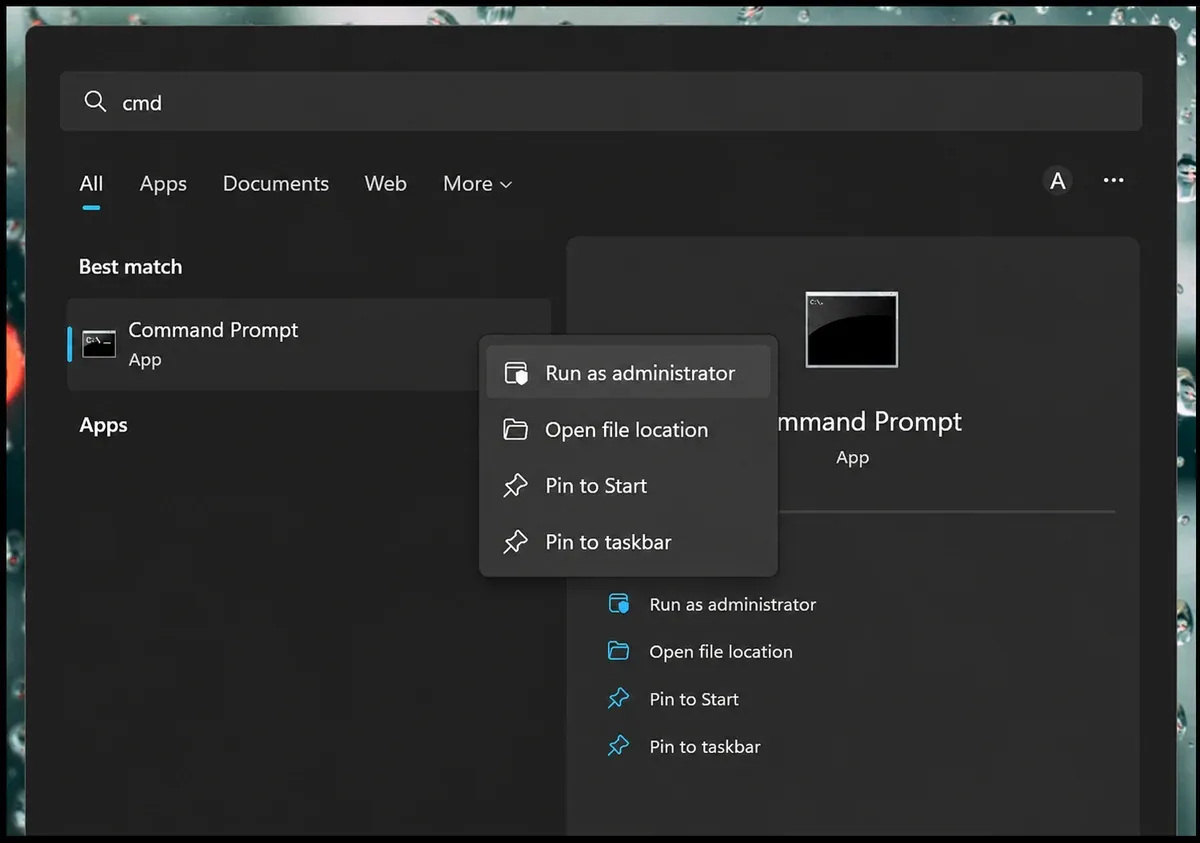
Open Search, type cmd, right-click Command Prompt and choose Run as administrator. Approve the administrator prompt. This is the administrator console used in Microsoft's DISM and System File Checker procedure.
For a baseline corruption check, enter this command and wait for its final result:
DISM.exe /Online /Cleanup-Image /ScanHealth/ScanHealth scans the component store; it doesn't repair it. If the scan itself fails with 1726, save that result and go to the log check below. /CheckHealth checks whether corruption has already been flagged and whether the image is repairable. A successful CheckHealth result doesn't mean a later RestoreHealth operation will finish.
If the scan identifies repairable corruption, run the repair command:
DISM.exe /Online /Cleanup-Image /RestoreHealthUse the same command for a controlled retry of an originally failing RestoreHealth operation after the update/restart checks. Microsoft documents these different image-check and repair operations separately. If DISM identifies the image as non-repairable, move to the recovery decision below rather than repeating RestoreHealth.
If 1726 returns, save the new error and logs, then investigate that attempt. Repeating the unchanged command doesn't tell you which component failed. If the error changes, follow the new code; for example, DISM error 2 needs file and path checks.
Read the log for the latest attempt
Use the log location DISM prints after the failure. The default DISM log path is %WINDIR%\Logs\DISM\dism.log. On the running Windows installation, open that path in File Explorer and copy the log before making more attempts.
Find the timestamp for your command, then read the nearby error entries and the messages immediately before them. Keep the associated code and named package, file or servicing process. The closing 1726 message can be less specific than the preceding failure. If you also collect %WINDIR%\Logs\CBS\CBS.log, keep the same time window; an old error elsewhere in a long log can describe a different attempt.
From recovery media, the default log can belong to the recovery environment rather than the installed Windows drive. Save it to a persistent, writable drive before leaving that environment. Microsoft supports /LogPath: for choosing a full log-file path, and notes that the default Windows PE log location uses RAM scratch space. Check available space and the actual drive letters before choosing a destination.
For support, share the command, versions, final result and relevant time-stamped log section together. Remove account names, device identifiers and private paths from a copy before posting it publicly. Preserve the original privately so redaction doesn't destroy the diagnostic record.
Check the offline target before retrying
/Online means the currently running operating system. It doesn't mean “use the internet.” In a recovery environment, that switch won't select the Windows installation on another drive. Microsoft's offline image syntax uses /Image: followed by the root of the applied or mounted Windows image.
Identify the installed Windows volume in the current environment first. Confirm it contains the expected Windows directory and installation; don't assume its usual drive letter survived the move into recovery. If the volume is encrypted and locked, retrieve the matching recovery key and unlock it before attempting repairs. Don't format an inaccessible volume to make DISM accept it.
For example, only if you've confirmed that D: is the target Windows installation, this command scans that offline installation:
DISM.exe /Image:D:\ /Cleanup-Image /ScanHealthThe target here is the applied Windows directory tree, not an install.wim file. A WIM used as a repair source is a separate input. Record both the host DISM version and the target image version. If the scan reports repairable corruption, the offline repair uses /RestoreHealth with that same verified /Image: target and an appropriate /Source: when needed. The repair-source checks for missing component files cover that separate source problem.
Check the compatibility of the DISM tool, host environment and target image, especially when using older recovery media. If you can't identify the installation, unlock it or establish a suitable repair source, stop the servicing attempt and preserve your files before choosing a recovery route.
Use a repair source only for the right failure
A replacement source is useful when DISM needs component files it can't obtain. Error 1726 by itself doesn't prove that downloading an ISO will fix the failure. Check the new result and log for a source-related problem before adding source switches.
Windows Update is the default repair source when policy allows it. For a file-based source, verify the applicable Windows version, image contents, servicing level and required languages. Microsoft warns that repair can fail when the target is patched beyond the source because the updated files aren't present.
With a WIM source, DISM requires the WIM: prefix and an explicit image index. Identify the index that contains the appropriate installation; don't assume index 1 is yours. /Image: still identifies the target directory tree, while /Source: identifies the repair files. Those paths serve different purposes.
Don't add /LimitAccess by habit. For an online repair it prevents DISM from contacting Windows Update for repair content, including as a backup source. Use it only when you intend to rely on a suitable alternate source. On a managed PC, have the administrator check the configured repair-source policy instead of overriding it with a random ISO.
What the reported fixes show
In a Windows 11 22621.1992 troubleshooting discussion, the owner eventually reported a clean SFC result and a completed RestoreHealth after further updates, including KB5028254. Earlier cache-clearing steps hadn't resolved the problem. Several changes occurred, so that report doesn't establish that one update or one service adjustment caused the recovery. KB5028254 is a historical detail of that PC, not an update to install on every current system.
The same discussion investigated a TiWorker crash and a possible certificate/catalog problem. Those are reasons to inspect a particular machine's logs. They don't justify applying its specialized registry suggestions to every 1726 failure.
An offline Windows 10 repair discussion had a different outcome: the owner continued to get 1726 after trying source media and eventually reinstalled because they ran out of time. Its accepted answer isn't a successful DISM repair. Copying that thread's source path and index would also skip the source checks above.
I wouldn't start by forcing RPC services to stop, editing RpcSs startup values, disabling Windows Search or turning off security software. The error definition and these reports don't establish a general fix from those changes. Keep any targeted change tied to a diagnosed cause and a recovery plan.
Verify the repair or choose a recovery route
After RestoreHealth completes successfully, run Microsoft's next system-file check:
sfc /scannowWait for the final SFC result. “Windows Resource Protection did not find any integrity violations” means that scan didn't find protected-system-file corruption; “found corrupt files and successfully repaired them” reports a repair. If files couldn't be repaired or the scan couldn't run, follow Microsoft's SFC result and CBS-log checks. A clean SFC result alone doesn't turn a still-failing DISM command into a successful repair.
Check the original Windows problem as well. Success means the intended DISM repair completes, SFC's final result is addressed and the update, feature or other operation you were trying to fix works. If only component cleanup fails while ScanHealth, RestoreHealth and SFC succeed, keep that cleanup failure separate from an unresolved image repair.
When repeated 1726 failures remain unexplained, back up important files and make sure you can retrieve the drive's recovery key before reinstalling Windows. On eligible Windows 11 PCs, Settings > System > Recovery > Fix problems using Windows Update > Reinstall now reinstalls the current Windows version while preserving apps, files and settings. Keep the PC powered and connected to the internet. It requires Windows 11's 2022 annual update or later with the February 2024 optional update or a later update installed; managed update policies can make the option unavailable.
On Windows 11, if you need installation media and Windows still starts, an in-place repair that keeps apps and files is a separate route. Microsoft directs you to start setup.exe from inside Windows and confirm Keep personal files and apps. Cancel if that retention choice isn't available. Booting from USB for a clean installation doesn't provide the same app-preserving workflow.
For a PC that can't start, preserve the files and the logs before considering destructive recovery. Bring the exact command, host and image versions, and the latest failure section to support; that evidence is more useful than another unchanged 1726 retry.



