
To turn off animations in Windows 11, press Windows + U, open Visual effects and set Animation effects to Off. Try the window movement that bothered you. If you only want to change minimizing and maximizing, use the individual Performance Options control below instead of choosing a broad visual-effects preset.
I'd start with the named motion setting because it provides a simple way back. A quicker-looking transition isn't proof that a slow application, busy drive or graphics fault has been repaired.
Turn off Animation effects in Settings
- Note the current Animation effects state so you can restore it.
- Press Windows + U to open Accessibility. You can also choose Start > Settings > Accessibility.
- Open Visual effects, then turn Animation effects Off.
- Minimize and restore an ordinary open window. Compare the movement with what you saw before the change. If a transition is uncomfortable, stop the comparison; don't repeatedly trigger it just to capture a recording.
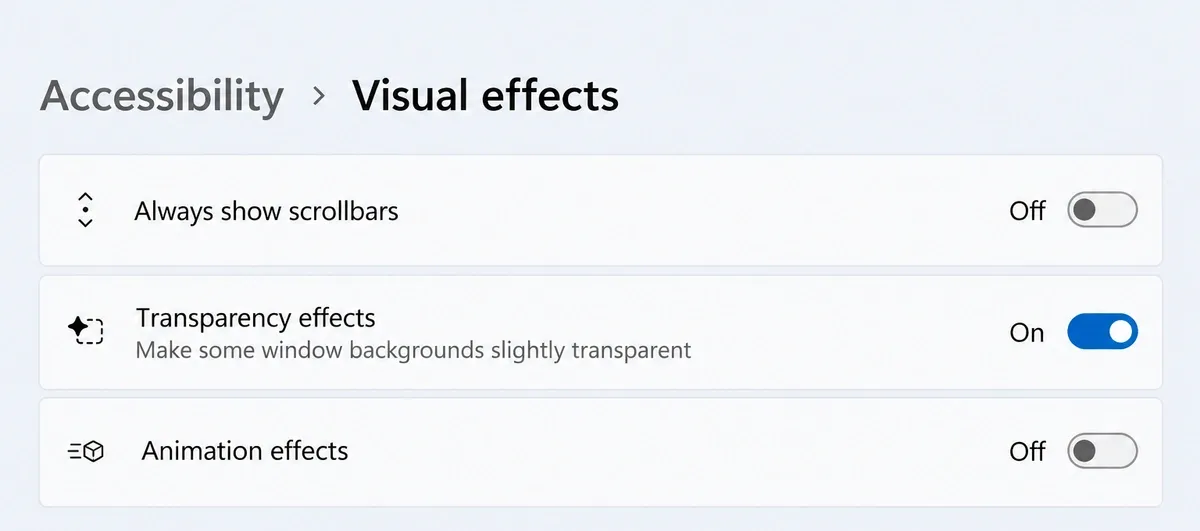
AbilityNet's illustrated Windows 11 animation instructions show this exact Settings route. You don't need to restart Windows just to try this toggle. Reopen Visual effects and confirm its state if you're unsure whether the change was accepted.
To undo the change, return to the same page and restore the recorded state. Don't turn off transparency, change contrast or change text size at the same time: keep the comparison about the motion you wanted to remove.
If Settings won't launch or closes immediately, follow the Settings launch and recovery checks. A different launch shortcut doesn't force a broken Settings application to work. If the option is unavailable or your organization manages it, ask IT to review the configuration rather than removing policy keys.
Choose the control for the result you want
| Your goal | Use this route |
|---|---|
| Reduce Windows interface animation generally | Start with Accessibility > Visual effects > Animation effects. |
| Change only minimizing and maximizing | Try the named Custom checkbox in Performance Options and compare that action. |
| Stop movement inside one app or website | Check that app's animation, reduced-motion or scrolling settings. |
| Fix slow file access or application work | Investigate the task and resource use, rather than judging animation alone. |
| Recover buttons that don't respond | Use the shell or app failure route; a preference change isn't a recovery procedure. |
Microsoft's guidance for respecting animation preferences tells application developers to listen and respond to the system's animation setting. That distinction matters: setting a Windows preference doesn't establish that every application or piece of web content will stop moving.
Change minimizing and maximizing separately
If the broad toggle removes an effect you want to keep, restore its previous state before trying a narrower comparison. Record your existing Performance Options choice and the relevant checkboxes too. Don't assume that the Settings toggle and every legacy checkbox behave as independent controls.
- Search Start for Adjust the appearance and performance of Windows and open it.
- In Performance Options, select the Visual Effects tab.
- Select Custom and clear Animate windows when minimizing and maximizing. Leave the other effects as they were.
- Choose Apply, then OK. Minimize and restore the same window again.
The selected-window animation procedure identifies that checkbox. Microsoft's visual-effects performance instructions verify the Start search and Visual Effects tab, but suggest the broader Adjust for best performance preset. That preset changes more appearance choices than this one-animation task needs.
Keep font smoothing, shadows and other useful effects at the states you recorded unless you deliberately want to change them. To undo the comparison, reopen Performance Options and restore the original checkbox and preset choices. Then confirm both the window action and any effects you wanted to retain.
This is a minimize-and-maximize comparison. Don't treat the checkbox as a guaranteed separate switch for virtual-desktop transitions, monitor-connection zoom or every taskbar animation.
If the movement you dislike remains
Identify exactly where it occurs: minimizing a window, switching desktops, adding a monitor, scrolling a browser page or watching content inside an app. Check the current Windows toggle, then repeat that one action. If only one app still moves, check its supported preferences and version before changing more Windows settings.
For a browser page, distinguish scrolling from an embedded video, animated image or a site's own transition. Use the site's or application's available pause and reduced-motion controls. If there isn't an appropriate control, report the particular effect to its developer with the app version and steps that trigger it.
A multi-monitor user's comparison illustrates the tradeoff: the owner said disabling animations stopped an unwanted desktop zoom but also affected browser smooth scrolling they wanted to keep. The replies propose different narrower changes; they don't establish one confirmed fix for every monitor configuration.
In a separate Windows 11 automation report, a legacy animation call returned True while the owner reported that the Settings preference didn't change. Check the visible control and the movement itself. A script's successful return isn't enough.
I wouldn't import an undocumented registry file or force-close Explorer or Desktop Window Manager for this preference. If a company requires a consistent setting across devices, let its administrator choose and verify a supported deployment method.
Keep the useful change and check the remaining task
Keep the change when the intended motion is reduced and your wanted effects still work. Restore unsuccessful temporary changes. If a setting later reverts, record when it happens, the affected account and any management message for IT; don't repeatedly force the value through another tool.
If the interface looks quicker but a document, game or file operation remains slow, use the slow-task and resource-use investigation. It separates background work, storage capacity and application load. No animation setting promises a particular speedup or repairs a failing drive.
If the taskbar stops responding rather than merely animating, use the taskbar and Explorer recovery checks. For another working-desktop preference, the Windows desktop and sleep hub keeps the related controls together.



