
To connect to Wi-Fi before signing in to Windows, select Network near the bottom-right of the sign-in screen, choose your trusted network and select Connect. For a home network, enter its Wi-Fi password if requested, wait for the connection status, then try your authorized Windows sign-in again. If wireless works only after the desktop opens, check whether the missing step is the sign-in control or your organization's network authentication.
I'd identify that boundary before changing adapters. A saved network, an automatic-connection checkbox and permission to authenticate before Windows sign-in are separate things. Deleting a work profile can remove the connection you need to get help.
Join your network from the sign-in screen
Microsoft's Windows sign-in troubleshooting instructions direct you to Network on the lock screen. The advice applies to Windows 11 and Windows 10.
- At the Windows sign-in screen, select the Network control near the lower-right corner. Look for the network symbol rather than a desktop taskbar.
- If wireless controls are available, turn Wi-Fi on. Check the actual Wi-Fi state if Airplane mode is shown; don't assume the saved network can connect while the radio is off.
- Select the network name you recognize and choose Connect. Enter the network's current password if prompted and select Next when shown. A work or school network may require an approved profile and different credentials.
- Wait for the displayed connection status to change. Then return to the Windows account's sign-in field and retry once with its correct sign-in method.
The Wi-Fi key and your Windows password or PIN serve different steps. Don't put your Microsoft account password into a home router's network-key prompt. If the network asks for a username, certificate or unfamiliar approval, follow the network owner's instructions instead of guessing.
Microsoft says that some sign-in situations need an internet connection. That doesn't mean every Windows PIN sign-in requires Wi-Fi. A connected network also doesn't prove that Windows has accepted your account credentials.
Choose the branch that matches the screen
| What you can observe | Next action |
|---|---|
| The network list opens and your home network appears. | Connect using its network key, observe the status, then retry Windows sign-in. |
| There is no usable wireless control before sign-in, but desktop Wi-Fi works. | Use an approved Ethernet fallback if available. Record the difference and ask IT to check the sign-in control and managed profile. |
| Wi-Fi is missing after an authorized desktop sign-in too. | Use the missing Wi-Fi and adapter checks; this is broader than pre-sign-in access. |
| The network connects, but Windows rejects the account sign-in. | Keep the exact account error. Confirm which sign-in method is being requested instead of repeatedly changing wireless settings. |
| Windows accepts your credentials, then stays on Welcome. | Follow the post-sign-in Welcome checks. |
If the network list opens but your expected network is absent, compare another trusted device in the same location. Don't connect to a similarly named hotspot. A missing network name and a missing Windows wireless control are different observations to report.
Compare with the desktop only if you can sign in
Use an already available, authorized sign-in method if you have one. Microsoft's Windows 11 connection instructions start from the desktop: select the taskbar's Network, Sound or Battery area and open the arrow beside Wi-Fi to inspect the network list. Record whether Wi-Fi is available, which network connects and whether internet access works.
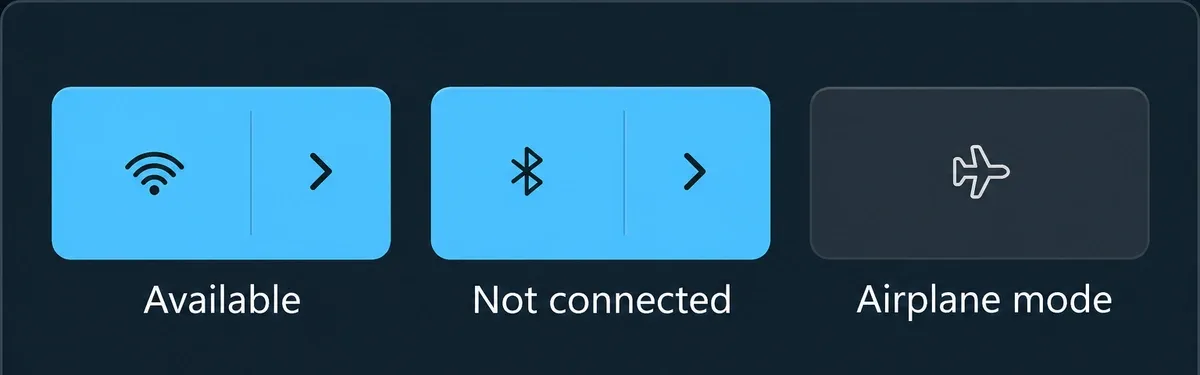
A working desktop connection narrows the question to what is available before sign-in. It doesn't establish which profile or authentication setting is wrong. If the only problem is that you must select Connect after reaching the desktop, use the saved-network automatic-connection checks. That is a different task from making a managed network usable before Windows authenticates you.
Don't repeatedly sign out while access is uncertain. Record the working connection first and arrange an approved fallback before testing a restart or another sign-in cycle.
Have IT check the pre-sign-in network profile
Work and school Wi-Fi can authenticate a device, a user or both. Tell IT whether this is a home network with a shared key or an organization's managed network, and whether the same PC connects immediately after Windows sign-in.
Microsoft's wireless profile reference distinguishes all-user and current-user profile scope, automatic connection mode, authentication identity and single sign-on mode. An enabled automatic-connection option alone doesn't establish that the required identity can authenticate before sign-in.
For a managed network that needs single sign-on, Microsoft's pre-logon and post-logon definitions describe when that authentication occurs. The same documentation says not to add single sign-on when the network doesn't require it. Turning on pre-logon SSO is not a universal home Wi-Fi fix.
Ask the administrator to verify the deployed profile's scope, intended machine or user authentication, required certificates and pre-sign-in requirements. Group Policy wireless profiles take precedence over user profiles; changing a personal setting may leave the managed configuration in control.
Keep the managed profile and certificate checks intact. Don't disable certificate validation, import an unknown profile, enable automatic Windows account sign-in or run a copied profile-changing command to get past this stage. An administrator should correct the configuration that the network requires.
Use the published reports with their conditions
The reports point to different failure stages. In a Windows 11 25H2 missing-icon case, the owner said desktop wireless was available and that the suggested power-related checks hadn't restored the login-screen icon. That report doesn't establish a successful adapter repair.
In a managed-laptop pre-logon discussion, different participants reported working all-user or device-authentication configurations. The original poster's final outcome wasn't shown. Those are useful leads for an administrator, not one confirmed setting for every network.
I'd use the before-and-after-sign-in distinction to choose the next investigation. The evidence doesn't justify forcing the PC off or installing an old wireless utility just because a forum reply recommends it.
Get an approved connection and record the result
If Wi-Fi isn't usable at sign-in, Microsoft recommends trying an Ethernet cable to the router or modem. On a work device, use a connection your organization permits. Don't expect a cable to remove account restrictions or replace corporate network authentication.
Check that the cable is seated and observe whether Windows reports a network connection, then retry the authorized sign-in. If another device also lacks internet access on that network, involve the network owner before changing the PC.
For support, record the Windows version, whether Network opens before sign-in, whether the expected network appears, the exact connection or account error, and whether Wi-Fi works after an authorized sign-in. Keep passwords, certificates and private network details out of public screenshots. The Windows networking hub covers the separate connection and adapter symptoms once you know which stage failed.



