
To change a Windows 11 product key, open Settings > System > Activation, select Change beside Change product key, and enter your valid 25-character Windows key. Use a key licensed for this device and the installed edition. After following the activation prompts, return to Activation and check the edition and activation state; accepting a key isn't the same as confirming activation.
I'd check the edition and purchase record before replacing a working key. A replacement intended for the same edition is a different task from buying Pro, moving a license between PCs or repairing activation after a motherboard change.
Check the key and current activation state
Open Settings > System > Activation. Note the installed edition and read the activation status, opening its details if available. Keep any existing error privately so you can compare the result afterward.
Compare that edition with the replacement purchase: a Home entitlement doesn't activate an installed Pro edition. Microsoft's activation guidance separates product keys from digital licenses and requires the appropriate entitlement. If this unchanged PC already has a digital license for the same edition, you may not need another key. Check that existing route before paying.
Use a Windows product key. An Office or Microsoft 365 purchase belongs to that product's activation workflow, and a request to change a keyboard key is a separate setting. Neither supplies a replacement Windows license.
On a work or school PC, let IT confirm the approved license and make the change. Don't replace an organization's activation configuration with a personal key. Keep the complete key, purchase record and account details out of public screenshots and forum posts.
If your goal is changing Home to Pro, use the Home-versus-Pro feature and upgrade decision first. If you're moving Windows to a different PC, establish the license origin and transfer conditions. Neither task is settled merely by entering a key here.
Open the product-key entry control
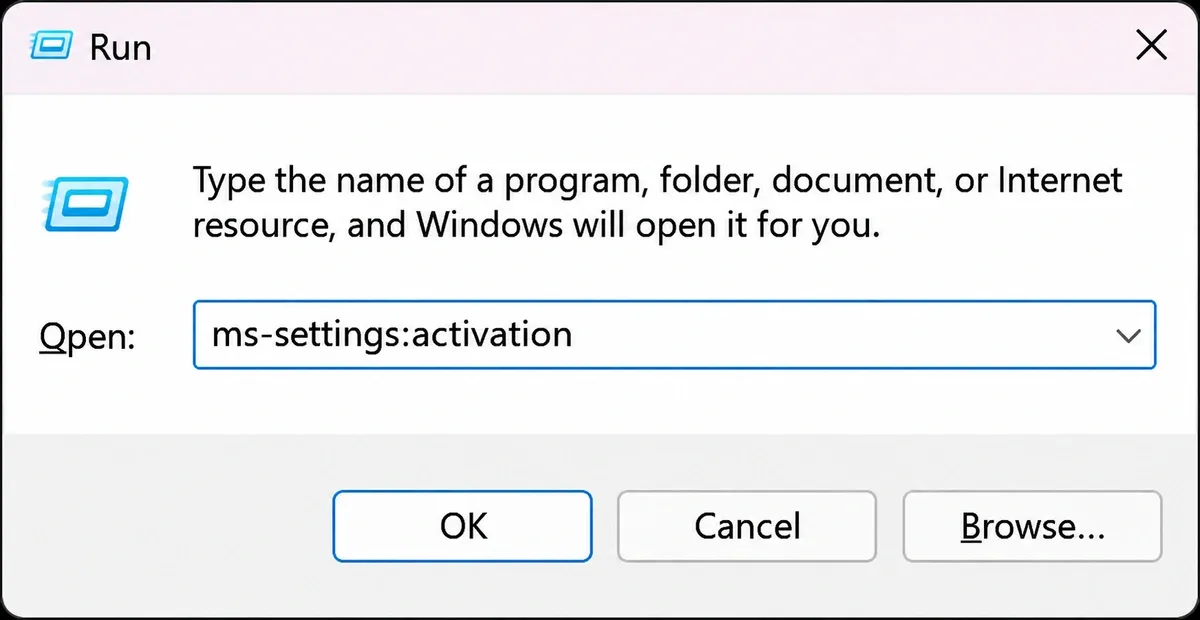
For a direct route to the page, press Windows + R, enter ms-settings:activation, and select OK. Microsoft documents the Activation Settings address and the Run keyboard shortcut. Opening this address doesn't install a key or activate Windows.
Save open work before continuing, and leave time for any restart requested by Windows. Read the proposed action before authorizing it; don't start an unintended edition change just to see whether a different key works.
- On System > Activation, expand Upgrade your edition of Windows if that section is present. Locate Change product key and select its Change button.
- If User Account Control asks for authorization, use an authorized administrator account. Don't try to bypass the prompt.
- In the product-key window, enter your replacement Windows key in the Product key box, then select Next. The key has 25 characters. Use your private purchase record, not an example string from a tutorial.
- Read the next window before confirming. Follow the activation instructions for the intended edition. If it proposes an edition upgrade you didn't intend, stop and recheck the key and purchase.
Microsoft's product-key entry instructions identify these controls and the administrator prompt. That document also covers edition upgrades; its upgrade branch isn't a reason to change editions during a same-edition replacement.
I'd use this Settings route for an ordinary personal-PC replacement because it keeps the key entry and the subsequent prompt together. There's no need to paste a complete key into a command shared with a forum or remove the installed key as a preliminary experiment.
Confirm the result on Activation
Connect the PC to the internet, complete the applicable prompts, then return to Settings > System > Activation. Check that the intended Windows edition remains installed and that the activation state reports activated. Read any available status details.
Microsoft's activation explanation distinguishes a product key from a digital license. A digital-license message doesn't mean Windows must display the complete replacement key on this page. Keep the purchase confirmation securely; an activated state alone doesn't establish that a seller supplied a genuine, properly licensed copy.
If the key or activation is rejected
Keep the exact message and code, and identify the stage: did the entry window reject the key, or did activation fail after submission? Recheck the key against its original private record and confirm the installed edition matches. Don't cycle through unrelated keys or use activation scripts to hide the error.
If a seller supplied Windows but never supplied the promised key or entitlement, contact that seller. Microsoft's activation guidance directs refurbished-PC owners to the refurbisher for the product key. A missing purchase record isn't a reason to publish your current key or install a key finder.
For a Microsoft online-store purchase, check your private Microsoft order history. Microsoft's product-key record guidance limits its records to purchases from its online store; for a key bought elsewhere, return to that retailer's confirmation or support. Don't assume Microsoft can retrieve every seller's missing key.
If the failure followed a hardware change, follow the hardware-reactivation branch in the OEM/Retail and reactivation checks. For an unchanged PC that remains unactivated, the activation-state and entitlement checks explain the appropriate next route. Give Microsoft, the manufacturer or IT the code, edition and purchase origin through its approved private support channel.
If the Activation page itself won't launch, use the Settings launch and repair checks before attempting more license changes. The installation and recovery hub connects the separate setup and recovery tasks when the problem is at another stage.


