
If Bluetooth disappeared in Windows 11, check whether the switch is also missing from Settings > Bluetooth & devices. Save your work, perform a complete shutdown, wait one minute, then power on and check again. If Bluetooth is still missing, use Device Manager to determine whether Windows currently lists the adapter before updating or reinstalling its driver.
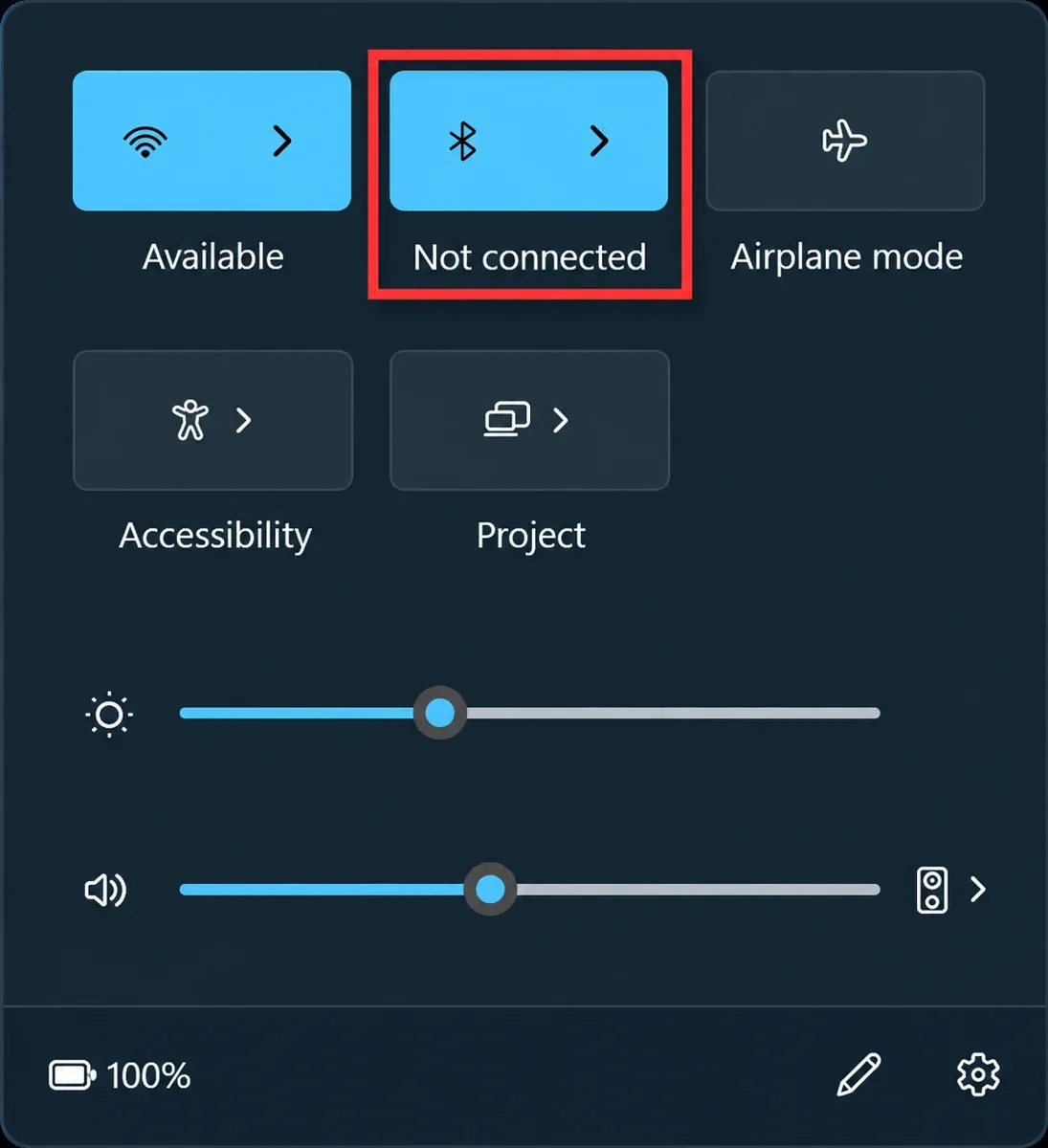
I would separate the missing control from a failed connection first. A Bluetooth tile that says Not connected is present and switched on; an absent or grayed-out switch needs a different investigation from headphones that won't pair.
Find out what disappeared
Before making a change, note when Bluetooth last worked and whether it disappeared after sleep, a restart, an update or a driver installation. Then press Windows + A to open Quick Settings and check that Airplane mode is off. Open Start > Settings > Bluetooth & devices. If that page has a usable Bluetooth switch, turn it on. Microsoft's Windows 11 Bluetooth checks distinguish the PC's Bluetooth controls from the accessory's power, charge, range and pairing state.
| What you find | What to check next |
|---|---|
| Quick Settings lacks Bluetooth, but Settings has a working switch | Use the Settings switch; check the Quick Settings layout before changing drivers. |
| Bluetooth is on, but one accessory is missing | Check the accessory's power and pairing instructions. |
| The switch is absent or grayed out in Settings too | Complete the shutdown check, then inspect the adapter in Device Manager. |
| Bluetooth has never been available on this PC | Confirm the PC or motherboard specifications include Bluetooth. |
Microsoft's pairing instructions explain that an enabled tile may say Not connected. Your Quick Settings layout can differ from the example; if the Settings switch works, use it while you check the layout on your Windows version. Don't copy Windows 10 Action Center instructions into Windows 11. A missing tile alone doesn't establish that the adapter has vanished.
Power off the Bluetooth hardware, then recheck
Microsoft's missing-Bluetooth procedure starts with a complete power-off:
- Save work and close apps. Have a built-in or wired keyboard and mouse available if you depend on Bluetooth input.
- Hold Shift while selecting Start > Power > Shut down.
- Once the PC is off, wait one minute.
- Turn it on and check both Quick Settings and Bluetooth & devices.
Choose Shut down, not Restart, for this check. Don't force the power off during a Windows or firmware update. If Bluetooth returns, connect a usual accessory and test the condition that caused it to disappear, such as a later sleep-and-wake cycle. Record whether the improvement lasts.
A deeper power-drain procedure is model-specific. Follow the PC manufacturer's instructions if it recommends one; don't open a laptop or disconnect an internal battery because a forum answer describes removing a battery.
Check the adapter before changing its driver
Right-click Start > Device Manager and expand Bluetooth if it appears. Identify the actual Bluetooth adapter; its name may contain Bluetooth or Radio. Record its name and any warning or status message. For a PC where Bluetooth never worked, verify hardware support before looking for a driver for a radio it may not contain.
If the category is missing, select View > Show hidden devices. Microsoft's hidden-device documentation notes that hidden entries can include devices that are no longer physically present. A previously installed entry is therefore a clue, not proof that the adapter is currently detected and usable. You don't need the old pre-Windows-8 environment-variable workaround for Windows 11.
Select Action > Scan for hardware changes, then check again. Also look under Other devices for an unrecognized device; Microsoft's Bluetooth guidance identifies that category as another place to check when the adapter isn't listed under Bluetooth. Keep the device's status and exact name rather than guessing from a generic USB entry.
| Device Manager result | Use this branch |
|---|---|
| The adapter is listed normally | Run the troubleshooter and check the relevant driver history. |
| The adapter is listed with an error | Keep the exact status or code and obtain the matching driver from the PC manufacturer. |
| Only a hidden historical entry appears | Record that distinction; don't assume reinstalling the old entry proves current detection. |
| No adapter appears after the shutdown and scan | Check model-specific driver, firmware and hardware guidance with the manufacturer. |
Choose update, rollback or reinstall from the history
First run the automated Bluetooth troubleshooter in Get Help. You can also open Settings > System > Troubleshoot > Other troubleshooters and select Run next to Bluetooth when that entry is offered. Record its finding and recheck the switch afterward. A completed troubleshooter isn't a confirmed repair until the missing control and connection work again.
If the current driver may be incompatible
For a listed adapter, right-click its name and choose Update driver > Search automatically for drivers. Follow the prompts and restart if requested. If no new driver is found, use the PC or motherboard manufacturer's official support page for the exact model. An automatic search result doesn't establish that every manufacturer package has been checked.
Microsoft's driver instructions require a package matching your Windows version and architecture. Download it before uninstalling anything, especially if Wi-Fi is also unreliable. Use the manufacturer's installer or, for an appropriate extracted package, Update driver > Browse my computer for drivers and its saved location. Avoid generic driver-updater downloads.
If the disappearance followed a driver update
With administrator permissions, open the listed adapter's Properties > Driver > Roll Back Driver. If available, choose the reason, confirm and restart when prompted. If rollback isn't available, keep the driver version and ask the manufacturer for a supported earlier package. Don't remove an unrelated Windows security update simply because Bluetooth disappeared near the same date.
If the adapter is present but its control is still missing
Microsoft's Bluetooth procedure offers reinstallation when Bluetooth appears in Device Manager even though its icon is absent. With alternative input and the model's driver package ready, right-click the Bluetooth adapter, select Uninstall device > Uninstall, then shut down. Wait a few seconds and power on; Windows will attempt to reinstall the driver. If it doesn't, use Action > Scan for hardware changes and the manufacturer's package.
Identify the adapter before uninstalling it. Don't remove every USB controller or delete unrelated devices to make this branch fit. If the adapter isn't listed at all, move to model-specific guidance rather than repeating an uninstall step that isn't available.
Why a reported fix may not match your PC
In an April 2026 Windows 11 discussion, a user reported that driver attempts hadn't solved an intermittent missing icon. An advisor asked whether Bluetooth still appeared with hidden devices shown. The visible thread doesn't confirm a final repair. That missing observation is exactly why the Device Manager branch matters.
A separate February 2026 discussion mentioning KB5077181 contains contrasting results:
| Reported attempt | Reported outcome | What it supports |
|---|---|---|
| The original poster reinstalled Bluetooth drivers | The problem remained; a later power-cycle procedure helped. | Reinstallation isn't the only relevant check for that history. |
| Another participant tried a power cycle | It didn't help; the participant reported that driver rollback resolved the issue. | Driver history can change the useful next action. |
These are user reports with different conditions, not a controlled comparison or proof that the named update caused every disappearance. My choice is to try the documented full shutdown first, then use current adapter detection and driver history to choose the next change. Record the result after each action so a later improvement isn't credited to the wrong step.
When to involve the PC manufacturer
If the adapter remains absent, Microsoft recommends model-specific manufacturer help because Bluetooth hardware errors can involve its driver or firmware. Check Settings > Windows Update > Advanced options > Optional updates for an applicable manufacturer update. Review what it addresses rather than installing every optional item. If none is offered, check the exact model's support page for BIOS, UEFI or firmware guidance. Follow its power, backup and recovery-key precautions; don't interrupt firmware installation.
Give support the PC model, Windows version, adapter and driver details if visible, whether Wi-Fi also disappeared, when the issue began, and the results of full shutdown, hardware scan and troubleshooter. Keep serial numbers and personal device identifiers out of public screenshots. A USB Bluetooth adapter can add Bluetooth to a supported PC, but buying one doesn't diagnose why an internal adapter disappeared.
Once the switch returns, pair a usual accessory, verify its actual function, then test restart and any sleep-and-wake pattern that previously triggered the loss. If the switch remains available but only pairing or audio fails, investigate that separate symptom through the device troubleshooting hub.



