
For an AMD PC running Windows 11, choose the Wi-Fi driver for the actual wireless adapter and exact computer or motherboard model. A Ryzen processor name doesn't identify that adapter, and AMD's Radeon/chipset download isn't a universal Wi-Fi installer. Start with the PC manufacturer's WLAN package; if the device is called RZ616, check its supported-model list before downloading a package with that name.
I'd settle the package identity before changing drivers. That avoids replacing working graphics or chipset software while the wireless device still lacks its own supported driver.
Separate the AMD badge from the wireless device
AMD's Windows auto-detect download is described for Radeon graphics and Ryzen chipsets. That scope doesn't establish that it supplies the WLAN driver your PC needs. For the broader distinction between CPU, chipset, graphics and firmware updates, use the Windows package-selection guide.
Also check what an AMD document is about. Its Enhanced PTP network-driver instructions concern Solarflare Ethernet adapters. That is a different hardware family from a laptop's RZ616 WLAN device.
| What you found | What to check |
|---|---|
| Ryzen or Radeon on the case | Read the wireless adapter's identity. The processor or graphics badge alone isn't a WLAN model. |
| RZ616 adapter | Find the PC's supported RZ616 WLAN package, including its model and operating-system conditions. |
| Intel or Realtek wireless adapter | Use the support route for that identified adapter and PC, even though the computer has an AMD processor. |
| Setup has no Wi-Fi | Check whether the manufacturer provides an installation-stage Wi-Fi package separately from its full driver bundle. |
Don't choose a wired Ethernet controller or a WAN Miniport because it appears under Network adapters. The missing Wi-Fi icon also doesn't identify a chipset. If the device is absent, cannot start or has an error code, the network-adapter status checks handle that diagnosis.
Read the adapter name before choosing a download
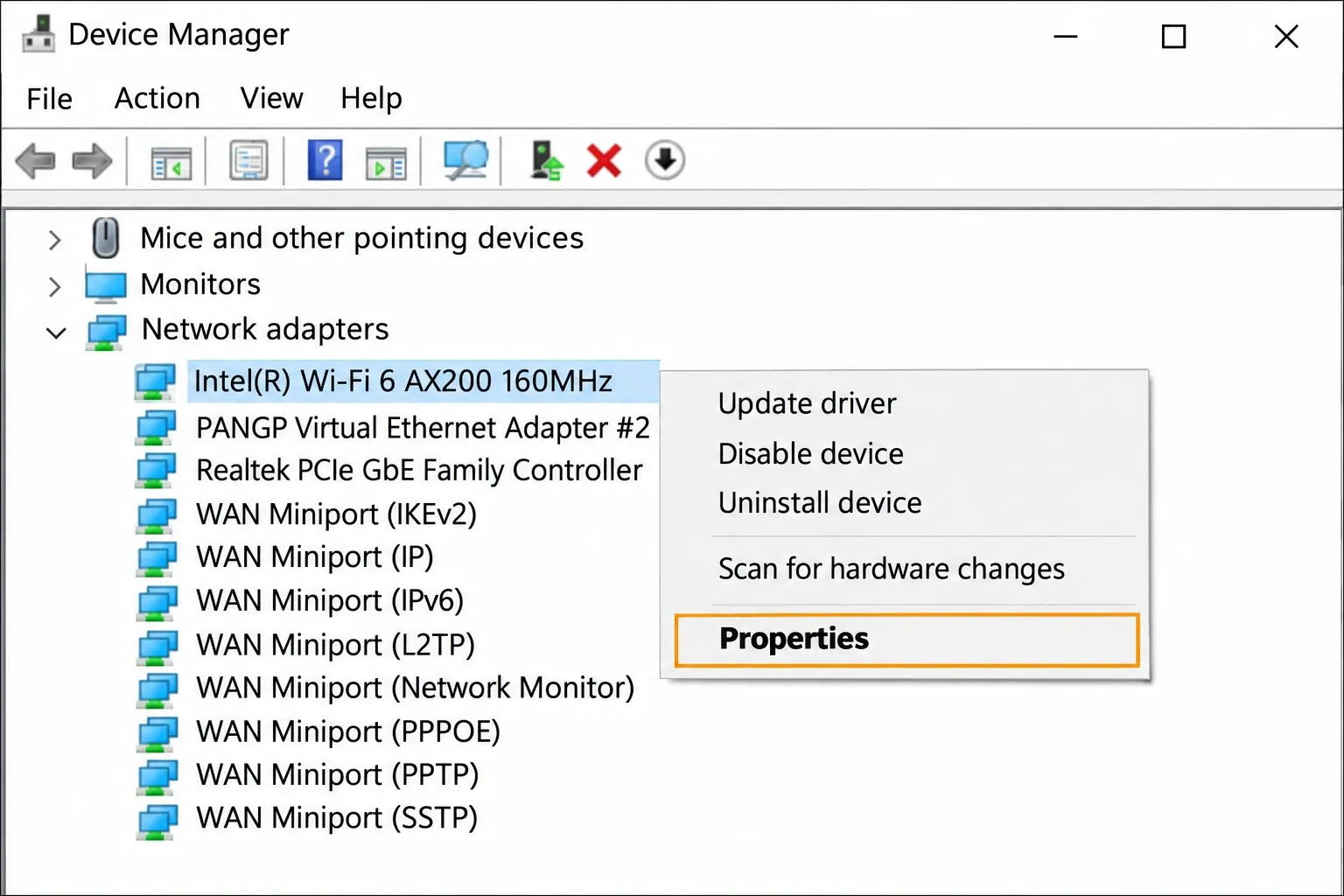
- Right-click Start > Device Manager, then expand Network adapters. Find the physical wireless device. An unidentified device may be listed under Other devices.
- Right-click that entry and select Properties. Record its name and the status on General; keep any existing provider and version from Driver.
- If the friendly name isn't enough, open Details and choose Hardware Ids under Property. Keep the complete identifiers for the manufacturer's support team.
Microsoft explains that hardware IDs match devices to driver packages. A search result containing the word AMD doesn't replace that match. For an external dongle labeled only 802.11n, use the separate USB Wi-Fi model and hardware-ID guide.
RZ616: match the computer as well as the adapter
An AMD-labeled WLAN download can be legitimate while still being wrong for your machine. Lenovo's RZ616 WLAN package notes identify the device as RZ616 Wi-Fi 6E 160MHz and list particular ThinkPad models and machine types. The same notes record models removed from that package's supported list.
Use the laptop or prebuilt desktop's exact model on its manufacturer's support site. For a custom PC, check the motherboard model and any required board revision; a separately added wireless card may have its own maker's support page. Keep the exact model or machine type with the adapter name. Select the listed Windows version and architecture, then read the WLAN package's supported devices, prerequisites and installation instructions.
I'd keep the model's own support page ahead of a cross-brand RZ616 archive. A matching adapter name doesn't establish that another manufacturer's bundle, installer or support conditions apply. If your model is excluded or the maker doesn't list Windows 11 support, ask its support team for an approved package rather than forcing the installation.
Framework AMD laptops: choose the package for the stage you're at
On a Framework Laptop 13 AMD Ryzen 7040 system, the official driver downloads distinguish the Windows driver bundle from a Wi-Fi Driver for use during Windows Installation. Choose the entry for your task and follow that package's instructions. A BIOS installer on the same page isn't the Wi-Fi download.
The Framework missing-Wi-Fi discussion contains a useful reported exception: a contributor identified an older bundle script pointing to the wrong Wi-Fi/Bluetooth directory, and a participant reported that the corrected bundle resolved the installation. That is a reason to check the exact model's current bundle and release information when a bundle finishes but leaves the network controller uninstalled. It isn't evidence that every AMD laptop needs that Framework package.
If the wireless adapter is Intel
Use the identified adapter model, even on a Ryzen PC. Intel's Wi-Fi download page lists the adapters covered by its current package and points some older adapters to separate downloads. Check that list and your PC manufacturer's guidance; a newer generic Intel bundle doesn't cover every older Intel wireless device.
If Wi-Fi disappeared after an Adrenalin update
If Wi-Fi disappeared after an Adrenalin update, record the actual wireless device and its status before replacing packages. In one Ryzen desktop owner's report, the wireless device was a Realtek USB adapter and no confirmed fix was established. The timing alone doesn't identify which component failed or prove that reinstalling Radeon software will repair Wi-Fi.
Install only after the package passes the match
Keep the correct official package available offline before removing a working driver. If this PC has no usable connection, download it on another trusted computer and transfer it by USB. On an organization-managed PC, use IT's approved package and installation route.
Follow the manufacturer's installer or extracted-driver instructions. Microsoft's manual driver-update procedure requires a package matching the Windows version and architecture. Stop at an unsupported-device message; don't edit an INF, disable driver-signature protection or uninstall all network adapters to make a mismatched package fit.
If a bundle version and the wireless device's driver version differ, compare the WLAN component listed in the bundle notes with that device. Don't make the two numbers match by forcing another package. The package-versus-component version checks explain that distinction for chipset records; they don't identify the installed WLAN driver for you.
After the requested restart, reopen the same wireless device's Properties and check its status, provider and version. Confirm the device you checked is the intended wireless adapter, rather than a different connection that still works. Then connect to your authorized Wi-Fi network and test the website or app you need. If the adapter still has an error, return to the status checks; if it is working but the connection fails, continue through the Windows networking hub. Keep the exact installer message and device details for support instead of trying another unrelated AMD download.


