

Right-click the archive file and select Show more options before reinstalling 7-Zip. Its commands may be in Windows 11's classic menu rather than the first menu you see. If 7-Zip is missing there too, open 7-Zip File Manager > Tools > Options > 7-Zip and check shell integration and the selected context-menu items.
I'd establish which menu is missing first. Changing the app that opens a ZIP file, grouping commands into a submenu and registering the shell extension solve different problems.
If the command is available but extraction stops with 0x80004005, use the ZIP extraction checks for error 0x80004005. Preserve the archive and compare its encryption, integrity and output folder before changing shell integration.
Check Show more options on the actual file
Open the folder containing a known archive in Windows File Explorer. Select the archive itself, right-click it, then choose Show more options. Don't use the folder's empty background or a file displayed inside an open archive for this first comparison.
Microsoft's File Explorer context-menu guidance identifies Show more options as the route to commands from the older menu. It also explains that not every extension appears in Windows 11's streamlined menu. Finding 7-Zip in the classic menu means its absence from the first menu doesn't by itself establish a broken installation.
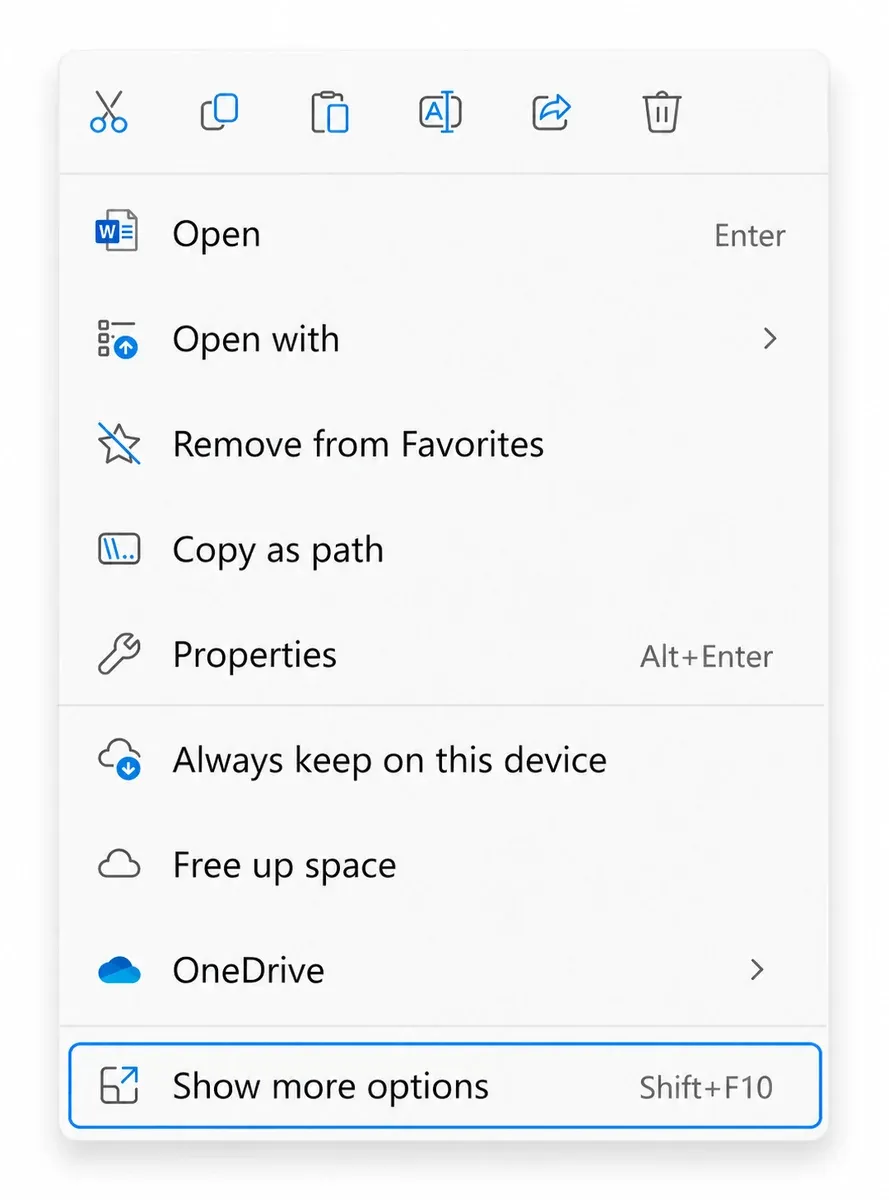
You can also hold Shift while right-clicking the selected item. Microsoft's Windows shortcut reference lists Shift+right-click for displaying the Show more options menu.
| Result | Next check |
|---|---|
| 7-Zip appears in the classic menu | Use it there. A missing first-menu entry is a placement question. |
| 7-Zip is absent from both menus | Check File Manager and its shell-integration setting. |
| 7-Zip appears, but a command is missing | Review Context menu items and whether you selected an archive or an ordinary file. |
| Right-click closes or restarts Explorer | Follow the separate Explorer crash investigation below. |
Enable the intended 7-Zip menu integration
Open 7-Zip File Manager from Start, then select Tools > Options and the 7-Zip tab. The 7-Zip Options help describes the shell controls separately from the System page's file associations.
If 7-Zip File Manager won't open or you can't find an installed desktop app, establish what package is installed before changing menu settings. Use the official Windows installer for your system when you need the desktop application; have IT supply it on a managed PC. If File Manager opens normally, continue with its integration controls below.
- Find Integrate 7-Zip to shell context menu. Enable the integration you intend to use.
- Review Context menu items. Check the commands you want, such as extraction or Add to archive, rather than assuming every command must be visible for every selection.
- Apply the change and close the options dialog. Note any error instead of repeatedly toggling the same checkbox.
- Return to the same archive in File Explorer and open Show more options again.
On a 64-bit system, the help describes separate integration checkboxes for 32-bit and 64-bit applications. The current 7-Zip menu definitions retain integration, cascading and individual context-menu controls. Choose the setting for the application you are checking; an old third-party file manager's 32-bit advice isn't a reason to replace a working x64 archiver with an x86 package.
If the control is disabled or the change reports an access error, keep that exact result. On a managed PC, ask IT to repair the approved installation. For a personal PC, use the official download page linked above if the installed package needs replacement. It provides separate x64 and ARM64 downloads. Don't download a shell-extension DLL from an unrelated repair site.
Choose a submenu or individual commands
Cascaded context menu groups the commands under one 7-Zip submenu. Context menu items determines which optional commands are included. Those are distinct controls in the 7-Zip menu options.
I'd keep cascading enabled when the menu is crowded. If you prefer individual commands, change that option and compare the classic menu again. This preference doesn't establish whether the app supports placement in Windows 11's first menu.
Be careful with advice for other archivers. A NanaZip feature discussion concerns its own cascading behavior and distinguishes the modern and classic menus. NanaZip's behavior shouldn't be applied to 7-Zip by substituting one product name for the other.
Keep file associations separate from the menu
The System page in 7-Zip Options controls file-extension associations. The 7-Zip page controls shell integration. The Options help explains both pages, including separate current-user and all-user associations.
If double-clicking a ZIP opens another app but the 7-Zip right-click commands work, investigate the default app only if you want to change that opening behavior. Setting 7-Zip as the default isn't the same check as enabling its context menu. Avoid changing every extension just to restore one missing command.
Compare Explorer with the file manager you use
Repeat the comparison on the same local archive in Windows File Explorer before changing a third-party file manager. If 7-Zip works in Explorer but not in the other app, record that app's version and architecture and check its extension support.
In a published XYplorer troubleshooting thread, the original poster eventually confirmed that the apparent 7-Zip extraction failure came from confusing a different ZIP command with the 7-Zip menu. It's a useful reason to verify the selected command before changing Windows. The thread's older architecture advice isn't a current compatibility table.
If right-click closes Explorer, use the File Explorer crash and shell-extension checks. A crashing process needs different evidence from a healthy menu with one missing entry. Don't start a Windows reset or paste a registry recipe solely because 7-Zip isn't in the first menu.
Finish the archive task and check the menu again
To extract files while investigating integration, open 7-Zip File Manager, browse to the archive and select it. Choose File > Open Inside, then select the items you need and choose File > Copy To... (F5). The 7-Zip archive help documents Copy To for extracting selected archive contents. Choose a separate output folder that won't overwrite files you need, and keep the original archive. A damaged archive or an extraction error is a separate problem from the menu entry's visibility.
For the final check, use a known, trusted archive. Confirm the intended 7-Zip command is available from the chosen menu, opens the expected dialog and completes the intended operation in your chosen destination. If it fails, save the exact error, installed 7-Zip version, Windows version and whether the same operation works in File Manager. The Windows desktop hub links the next investigation to the behavior that remains.



