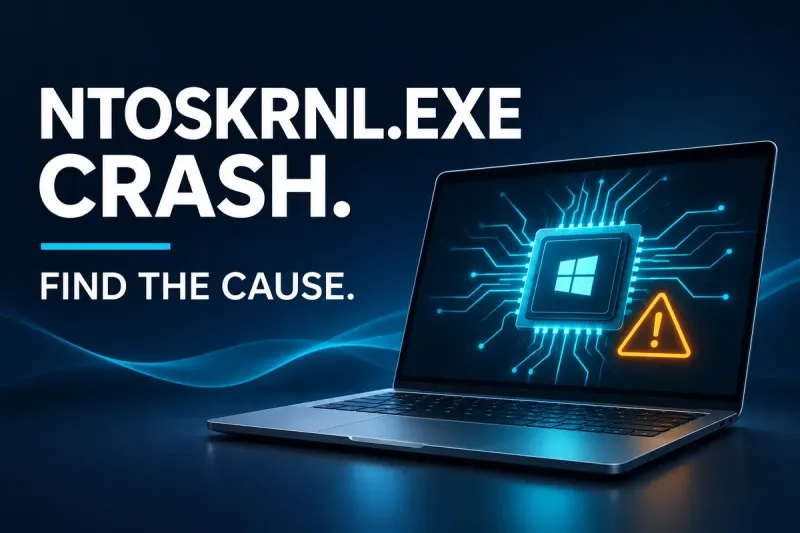
ntoskrnl.exe Blue Screen: Find the Cause in Windows 11
Use the stop code and recent-change evidence to choose a driver, memory or recovery check without replacing the Windows kernel.
Windows troubleshooting
Find clear, step-by-step help for Windows updates, startup problems, devices, and internet connections.
Use the stop code and recent-change evidence to choose a driver, memory or recovery check without replacing the Windows kernel.
Windows desktop, search and sleep
Check the active Dropbox folder and both Explorer menus before repairing the client or changing sync choices.
Windows desktop, search and sleep
Check whether Windows still reports the battery, then choose the percentage, taskbar or model-specific device route.
Separate an installation-media problem from a documented storage-driver requirement before changing firmware modes or touching the internal drive.
Windows desktop, search and sleep
Choose which apps open at sign-in, keep required protection and work tools, and distinguish startup entries from restored sessions before changing more settings.
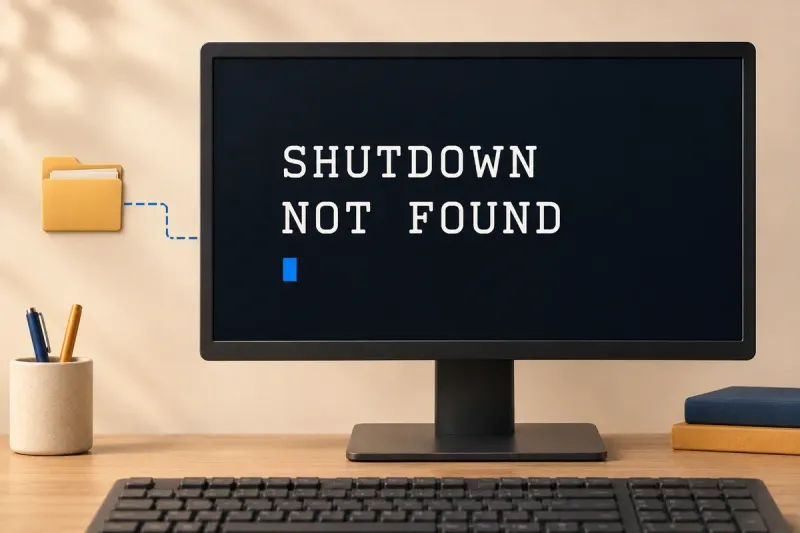
Check the Windows executable without powering off, inspect command resolution and repair a confirmed missing PATH entry while preserving the rest of your configuration.
Windows desktop, search and sleep
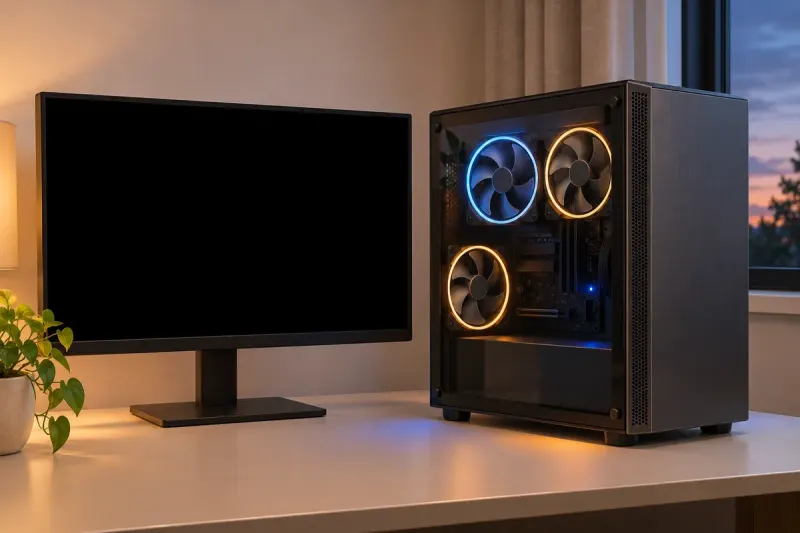
Separate standby lighting from a failed shutdown, identify the powered component and change the relevant control without losing needed charging or wake functions.
Windows Update errors and installation problems
Separate a pending update from an installation already underway, choose the supported power action and avoid unreliable shutdown shortcuts.
Separate activation restrictions from license rights and support. Read the exact state, check the matching entitlement and choose the legitimate next step.
Keep S mode while the permitted apps meet your needs. Check the required task, understand the permanent change, and use the free Store exit when needed.
Windows desktop, search and sleep
Separate a desktop menu failure from a missing mouse input or app command, then make one reversible Explorer, integration or policy comparison.
Windows devices, printers and drivers
Separate a missing physical click from a reversed assignment or an app profile, then choose a targeted fix or model-specific support.