Find the Right DISM Repair Source Index in Windows 11
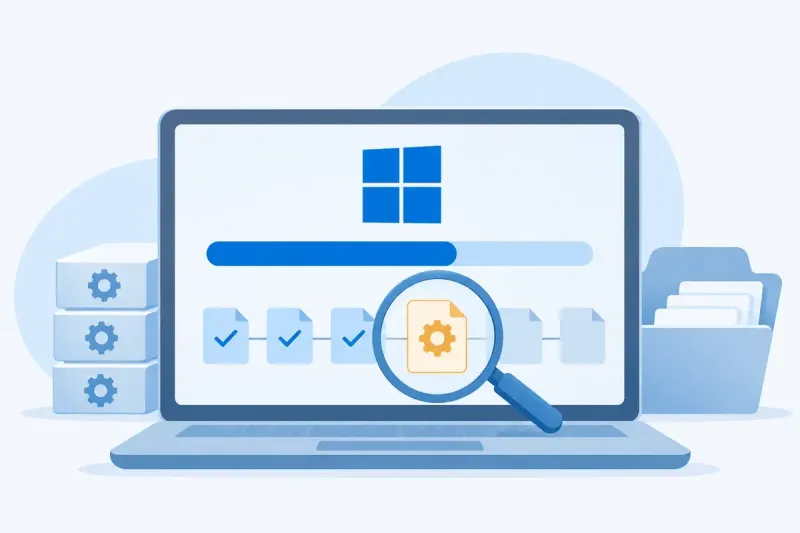
List the editions inside a Windows image, select the matching WIM index and check source compatibility before repeating a failed DISM repair.
Windows troubleshooting
Find clear, step-by-step help for Windows updates, startup problems, devices, and internet connections.
List the editions inside a Windows image, select the matching WIM index and check source compatibility before repeating a failed DISM repair.
Check whether DISM is still working at 62.3%, watch its logs in a separate window and use the final result to choose the next repair step.
Windows desktop, search and sleep
Prepare Windows 11 installation media and drivers on another PC, understand the separate account-setup gate and choose an offline route that matches the image.
Windows desktop, search and sleep
Check the Fn layer, virtual-machine input and Setup phase before repeating old OOBE commands. Separate a missing prompt from an unsupported account workaround.
Windows desktop, search and sleep
Check what the Styler can change, test an integrated theme, separate transparency dependencies and XAML conflicts, then collect the right Windhawk debug log.
Windows desktop, search and sleep
Separate a missing wake signal from a blank display or failed resume. Check supported sleep states, wake devices and drivers without resetting every power setting.
Windows desktop, search and sleep
Recover Explorer, test a local folder instead of Home or a network path, inspect the crash record and isolate shell additions before a Windows repair.
Windows desktop, search and sleep
Open Task Manager without the taskbar, restart Windows Explorer, check hidden taskbar settings and isolate recurring failures before choosing a Windows repair.
Windows desktop, search and sleep
Compare manual Sleep with the idle timer, inspect power requests and wake sources, and restore a missing Sleep menu without forcing unsupported power states.
Windows desktop, search and sleep
Use Task Manager when Settings closes or will not launch. Check recent changes, reset only the affected app and preserve files before choosing recovery.
Windows desktop, search and sleep
Separate a blank Search interface from missing file results. Restart the correct process, check indexing scope and status, and preserve evidence before recovery.
Windows desktop, search and sleep
Use Task Manager when Start and Search are unavailable. Separate a temporary Explorer failure from a menu mod, user registration problem or recurring Start crash.